Downloaded subtitles don’t match your movie? BluRay vs WEB-DL, 23.976 vs 25 fps
Updated October 29, 2026
You found subtitles for the right film, in the right language, and they still don’t fit. The text comes a few seconds before the actors speak, or it starts fine and is minutes off by the end. The file usually isn’t broken. It was made for another release of the same film, and releases differ more than you’d think.
This guide shows how to read the file names to see what kind of mismatch you have, when it’s quicker to find another subtitle, and how to fix the one you have so it fits your copy.
Why one film has many timings
A subtitle file stores the time of every line, counted from the first frame of the video it was made for. Two copies of the same film can disagree about that clock in three ways:
- They start at a different moment. A Blu-ray often opens with studio and distributor logos, and those change from country to country. A streaming copy may skip them or add the service’s own intro, and a TV recording may begin with a recap or the end of another programme. Every line is off by the same amount.
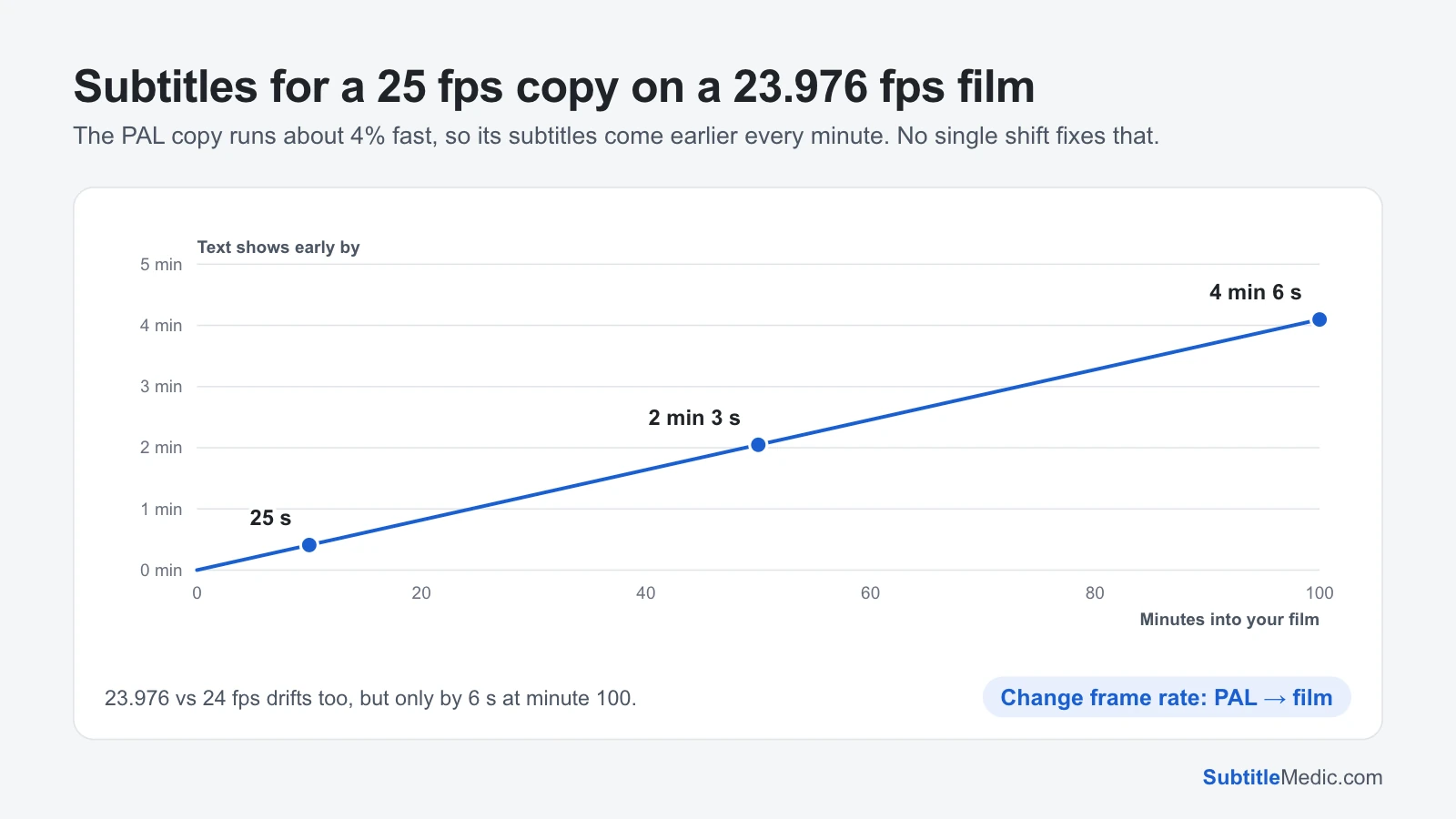
- They run at a different speed. Films on Blu-ray and streaming services are usually 23.976 frames per second. European TV and PAL DVDs show the same frames at 25 per second, so the whole film runs about 4% faster: a 100-minute film ends about four minutes sooner. Subtitles from one drift further off on the other with every minute.
- They don’t have the same scenes. An extended edition, a director’s cut or a censored TV version adds or removes scenes. The timing is right until the first changed scene, then it jumps.
These can come together. A PAL TV recording usually has both a different start and a different speed.
Read the release name
Most video files, and most files on subtitle sites, carry a release name such as Movie.2019.1080p.BluRay.x264-GROUP or Movie.2019.1080p.WEB-DL.DDP5.1.H.264-GROUP. The parts tell you what the subtitle was timed against:
- BluRay, BDRip, BRRip, REMUX: made from a Blu-ray. Films are almost always 23.976 fps.
- WEB-DL, WEBRip: made from a streaming service. Usually 23.976 fps for films too, but the opening can differ from the Blu-ray by a few seconds.
- HDTV, PAL, DVDRip from a European source: often 25 fps.
- Extended, Director’s Cut, Unrated, Theatrical: a specific cut of the film.
- The group name at the end: files from the same group and the same source almost always share one timing.
Now compare the subtitle’s name with your video’s. Same source and same group: it should fit as it is. Same source, another group: expect a small constant delay. A Blu-ray or web subtitle on a PAL or TV copy, or the other way round: expect drift. Some subtitle sites also list the frame rate each file was made for. Treat it as a hint, because uploaders don’t always fill it in correctly.
Look for a better match first
If you can still choose, a file that matches your copy is quicker than fixing one:
- Search for the exact release name of your video, not only the film’s title.
- Prefer a subtitle made for your source (BluRay, WEB-DL) and, when it’s listed, your frame rate.
- Some subtitle sites and apps match by a fingerprint (hash) of the video file. A hash match was uploaded for that exact file and is usually in sync, but check a line anyway.
- Read the comments under a subtitle. Notes like “also works with the WEB-DL” save a lot of trial and error.
No match for your copy, or the only subtitle in your language was made for another release? Then fix it.
Check two moments to name the mismatch
Play one line near the start and one near the end. Each time, note how far the text is from the voice, and whether it comes before or after.
- The same gap both times: a different start.
- Close at the start, minutes off at the end: a different speed, usually 25 against 23.976 fps.
- Only a few seconds off at the end: also a speed difference, the small one between 24 and 23.976 fps.
- Right for a while, then suddenly off by a new amount: a different cut.
 Open full size (new tab)
The chart shows why a speed difference can’t be fixed by moving the file once. Shift it 25 seconds to fit minute 10, and it’s still more than a minute and a half off at minute 50.
Fix the subtitle for your copy
A different start. Open Shift Subtitle Timing, load the file and enter the gap: Too early → show later if the text comes before the voice, Too late → show earlier if it comes after. Not sure of the gap? Subtitle Player plays your video with the subtitles on it. Press its ±0.1 s and ±1 s buttons until a line fits, then download the file with that offset applied.
A different speed. Open Change Subtitle Frame Rate and say which way the text drifts:
- A subtitle from a PAL copy on a Blu-ray or web copy comes earlier and earlier. Pick PAL → film.
- A subtitle from a Blu-ray or web copy on a PAL copy comes later and later. Pick Film → PAL.
- Only a few seconds off at the end? Pick one of the 24 fps fixes instead.
The tool shows how far each fix moves the last line of your file. Pick the one that matches the gap you saw at the end.
Both a different start and a different speed. Fix the speed first, then measure the gap that is left near the start and shift it. In that order you only measure once.
You have another subtitle that is in sync. Often the English file matches your copy and the one in your language doesn’t. Sync Two Subtitles measures the gap between the two files and moves yours to match. It also stretches a file that drifts. The languages don’t have to be the same.
A different cut. Fix the file one stretch at a time. In Shift Subtitle Timing, set From line to the first line after the jump, measure the new gap and shift it, then repeat at the next jump. Lines for scenes your copy doesn’t have can be deleted in the Subtitle Editor.
Save the fixed file next to the video with the same name, such as Movie.2019.mkv and Movie.2019.en.srt, and remove the old one. Every tool runs in your browser: your subtitle and your video are never uploaded.
The same fix in your player
How to fix subtitles out of sync covers the three kinds in more detail and shows how to test a delay live in VLC.
If you watch in a media player or app, the steps to load the fixed file differ. See Plex subtitles out of sync, Jellyfin subtitles out of sync, Kodi subtitles out of sync and subtitles out of sync on Netflix.