Plex subtitles out of sync? How to fix them for good
Updated October 29, 2026
You press play in Plex and the subtitles are a couple of seconds ahead of the actors, or they start fine and slowly fall behind. Plex itself rarely causes this. The subtitle file was timed for a slightly different copy of the film, and Plex shows each line at exactly the time written in the file.
That is good news, because it means the fix is in the file. Correct it once and it plays in sync in Plex Web, on your TV, your phone and every other Plex app.
Why Plex subtitles go out of sync
A subtitle file stores a start and end time for every line, counted from the first frame of the video. Those times only fit the release they were made for. The most common reasons a file doesn’t fit yours:
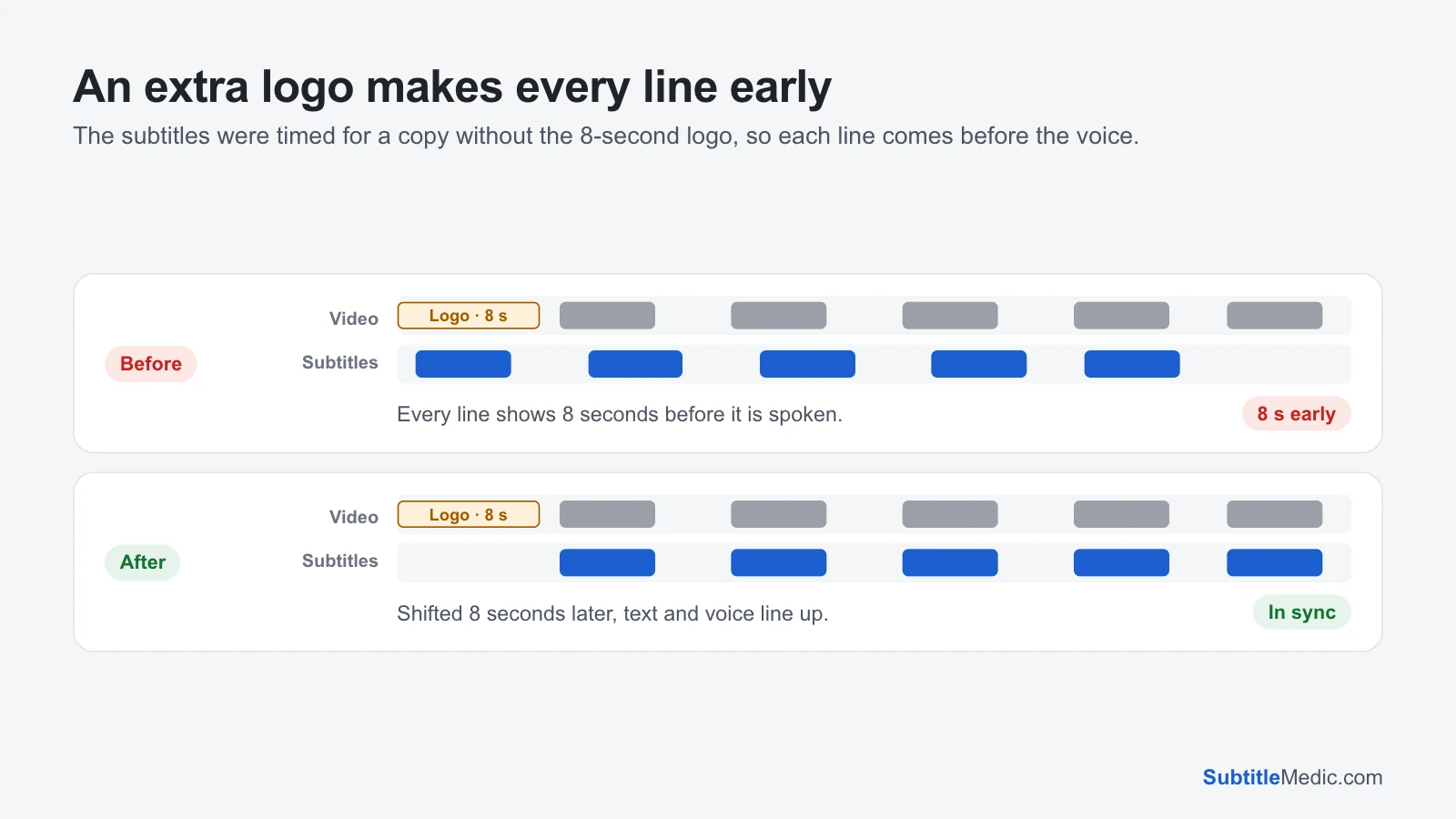
- A different start. Your copy has a studio logo, a recap or a few seconds of black that the subtitle’s copy didn’t have, or the other way round. Every line is off by the same amount.
- A different frame rate. Subtitles made for a 25 fps European release drift against a 23.976 fps Blu-ray or streaming copy: in sync at the start, minutes off by the end.
- A different cut. An extended edition or a TV version adds or removes scenes, so the gap jumps at each cut.
- Subtitles Plex found for you. When you search for subtitles from the player, Plex lists files other people uploaded for many releases. The first one in the list isn’t always the one for your copy.
 Open full size (new tab)
Step 1: Check two moments, not one
Play the film and look at one line near the start, then one near the end. Note roughly how far the text is from the voice each time.
- The same gap both times: a constant delay. One shift fixes it.
- In sync at the start, off at the end: a frame rate mismatch. A shift won’t help; the times must be stretched.
- Fine, then suddenly off: a different cut. Fix the file one stretch at a time.
How to fix subtitles out of sync explains the three kinds in more detail, with the same checks for VLC and other players.
Step 2: Try the offset in the Plex app
Some Plex apps, Android, Android TV and Fire TV among them, let you adjust the subtitle offset during playback. Open the playback settings while the subtitle is on and look for the offset option. It has limits worth knowing:
- It only works for external text subtitles, such as an
.srtfile next to the video. Subtitles inside the video file and image-based subtitles can’t be moved. - Users often report it is missing while Plex is transcoding the video, for example when it burns styled subtitles into the picture.
- The steps are small, it takes a moment to apply, and the value isn’t shared with your other Plex apps.
If you have Plex Pass, the auto-sync option for subtitles can line up an external SRT file by itself once the server has analysed the media. It moves the whole file by one amount, so it helps with a constant delay but not with drift, and it can’t fix a file that is very far off.
Whatever the app shows you, write down the delay that works. You will use it in the next step.
Step 3: Fix the subtitle file
Fixing the file means every Plex app, now and later, shows the subtitles on time.
A constant delay. Open Shift Subtitle Timing and drop your .srt in. Choose Too early → show later if the text comes before the voice, or Too late → show earlier if it comes after, and type the seconds. You can open the video in the same page and click a line to check it before you download.
Don’t know the delay yet? Subtitle Player plays your video in the browser with the subtitles on it. Press the ±0.1 s and ±1 s buttons until a line of dialogue lines up, then download the file with that offset applied.
The gap grows through the film. Use Change Subtitle Frame Rate. Say which way the text drifts and it lists the usual conversions, with how far each one moves the last line. Pick the one that lands the final line on the voice.
You have another subtitle that is in sync. Often the English track matches your video but the file in your language doesn’t. Sync Two Subtitles measures the gap between the two files and moves the broken one to match, and it can stretch a file that drifts.
The subtitles are inside an MKV. Plex can’t offset embedded subtitles. Pull the track out with Extract Subtitles from MKV, fix it as above, and add it next to the video.
Everything runs in your browser: your subtitle file and your video are never uploaded.
Step 4: Put the fixed file where Plex reads it
- Save the file in the same folder as the video, named after it:
Movie (2024).mkvandMovie (2024).en.srt. - Delete or move the old, broken file. If two files share the language code, Plex may keep using the old one.
- If you set an offset in the Plex app, set it back to zero, or Plex adds it to the fixed timing.
- In Plex, open the movie or episode and choose ⋯ → Refresh Metadata, so it reads the new file.
- Start playback and select the subtitle track again.
If it is still out of sync
Only the first few minutes are right. You fixed a delay, but the file also drifts. Run the fixed file through Change Subtitle Frame Rate, then check the start again.
It matches for a while, then jumps. Your copy has an extra or missing scene. In Shift Subtitle Timing, set From line and To line to cover only the stretch after the jump and shift it on its own, then repeat for the next stretch.
Plex keeps showing the old timing. Check the folder for a second copy with a different language code, such as Movie.eng.srt next to Movie.en.srt, and refresh the metadata again.
You chose a subtitle in Plex’s search. Those files are stored by Plex, not next to your video, so you can’t edit them in place. Pick a result whose release name matches your file (BluRay, WEB-DL, the release group) or download a file yourself, fix it and add it to the folder.
If the letters look wrong instead of the timing, see Plex subtitles showing weird characters.