Turn YouTube captions into a clean transcript, without the repeated lines
Updated October 30, 2026
You want the words of a video as text: for notes, a blog post, a quote, a translation or a summary. YouTube already has them, because almost every video has captions, written by the creator or generated automatically. The job is to get the caption file out of YouTube and strip everything that isn’t a word.
Done by hand, that takes a while. A caption file is full of timing lines, and automatic captions repeat every sentence two or three times. Here is how to get the file, and how to turn it into a transcript that reads like text.
Get the caption file
From your own channel, YouTube Studio hands you the file:
- In YouTube Studio, choose Subtitles in the left menu and click the video.
- Find the language you want. Automatic captions have their own row, marked as automatic.
- Open the ⋮ (Options) menu at the end of the row and choose Download.
- Pick
.vtt,.srtor.sbv.
The labels move a little between versions of Studio, but the download is always in the menu of the language row. Any of the three formats works for a transcript. The words and times inside are the same; only the notation differs.
From someone else’s video, Studio can’t help: it only lists videos on channels you manage. On a computer, open the description under the video, click …more and then Show transcript. A panel opens with every caption and its time, and its ⋮ menu can hide the times. You can select the text there and copy it, but you get one short line per caption and no paragraphs.
Download tools such as yt-dlp save the captions of a public video as a file, usually .vtt. For automatic captions, that is the file with the repeated lines described below. A transcript of someone else’s video is fine for your own notes; publishing it is publishing their words, so ask first.
Why automatic captions repeat every line
 Open full size (new tab)
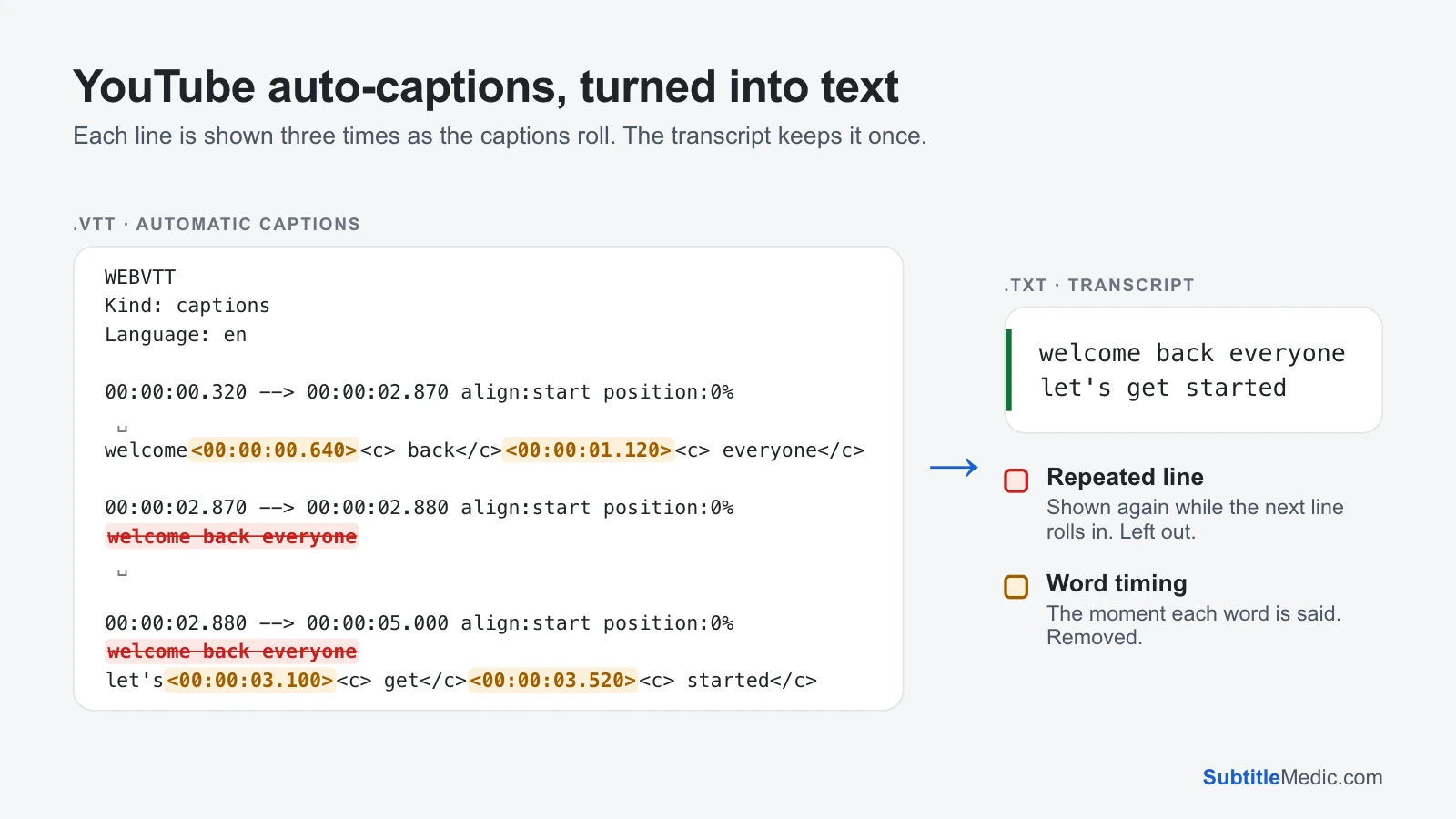
Automatic captions on YouTube roll. Two lines are on screen, and when a new line starts, the old one moves up instead of disappearing. A caption file has no way to say “move up”, so the file writes the screen again each time:
- the first cue holds the new line, with a timing tag such as
<00:00:00.640>before each word, so the words can appear one by one; - a cue of 10 milliseconds holds the finished line alone, as the bridge to the next one;
- the next cue holds the same line again, on top of the new one.
On YouTube this looks smooth. Read as text, every sentence comes three times, and the word tags make it hard to read at all. This is what VTT files from download tools look like.
Files downloaded from YouTube Studio are tidier. Each piece of text usually comes once, but the pieces are short, they overlap in time, and they often cut a sentence in the middle. Automatic captions may also have little or no punctuation, depending on the language.
Turn it into text
A .vtt file: open Convert VTT to TXT and drop the file in. The tool recognises rolling captions by their word timing tags and keeps each line the first time it appears. The tags, the timing lines, the cue settings and the WEBVTT header are removed. The summary under the options counts the lines it left out, so you can see it worked. Download the .txt file.
A .srt file: Convert SRT to TXT does the same job. An SRT file from Studio has no rolling repeats to remove. If a download tool converted rolling captions to SRT for you, though, the word tags are gone and the repeats are still there, and nothing in the file tells a repeat from a line someone really said twice. When a download tool lets you choose, take VTT.
A .sbv file: turn it into SRT first with Convert SBV to SRT, then use Convert SRT to TXT. Both steps keep every word.
All three tools run in your browser. The file is never uploaded, which matters when the video is an internal meeting or an unpublished lesson.
Timestamps or not
The transcript tools have two switches. With both off, you get the words alone, one caption per line.
Leave timestamps out when the text goes into something else: a translator, a summariser, a word count, a search through a whole course. Times would only be noise there.
Keep timestamps when you need to find the moment again. Each line, or each paragraph, starts with its time in square brackets, such as [00:12:40]. That is what you want for quoting someone, for study notes, and for writing the chapter list of a long video.
Make it read like paragraphs
Captions cut speech into pieces of two or three seconds, and automatic captions often break in the middle of a sentence. Turn on Merge into paragraphs: pieces that follow each other are joined, and a pause of more than two seconds starts a new paragraph. A long paragraph also ends where the next sentence ends, and auto-captions without punctuation get a break about every thousand characters.
For a talk or a lecture, turn on both switches. You get readable paragraphs, each one with the time it starts.
The tool joins and splits by timing only. It can’t add punctuation or know where a new topic begins, so read the text once and add the breaks a reader needs.
Fix the words: in the text or in the captions
Automatic captions get names, brands and technical words wrong. Where you fix them depends on whether the captions should improve too:
- Only the transcript matters: fix the words in the
.txtfile. Search and replace takes care of a name misheard twenty times. - The captions on YouTube should improve too: fix the file first in the Subtitle Editor. It opens
.vtt,.srtand.sbv, lets you play the video next to the captions and saves in the same format. Upload the corrected file in Studio, then turn the same file into text. Both are right, and you only fixed things once.
Captions full of [Music] and [Applause]? Remove SDH from Subtitles takes out sound descriptions before you convert.
Keep the original caption file. A transcript can’t become captions again: the times are gone, or only the start of each paragraph is left.
More about these formats
What is a VTT file? explains where .vtt files come from and what is inside them. How to open an SBV file covers YouTube’s own format, the third one Studio offers. And if you want subtitles for a player rather than text, SRT vs VTT helps you pick the format.