How to open an SBV file: read it, play it, edit it or convert it
Updated October 29, 2026
You downloaded captions from YouTube Studio, or someone sent you a file ending in .sbv, and double-clicking it does nothing useful. Your computer asks which app to use, or the video player you tried ignores it. Nothing is wrong with the file. SBV is YouTube’s caption format, and outside YouTube very few programs know it.
The good news: an SBV file is plain text. You can read it in any text editor, play it in VLC, edit it in your browser, and turn it into SRT or VTT for everything else.
What an SBV file is
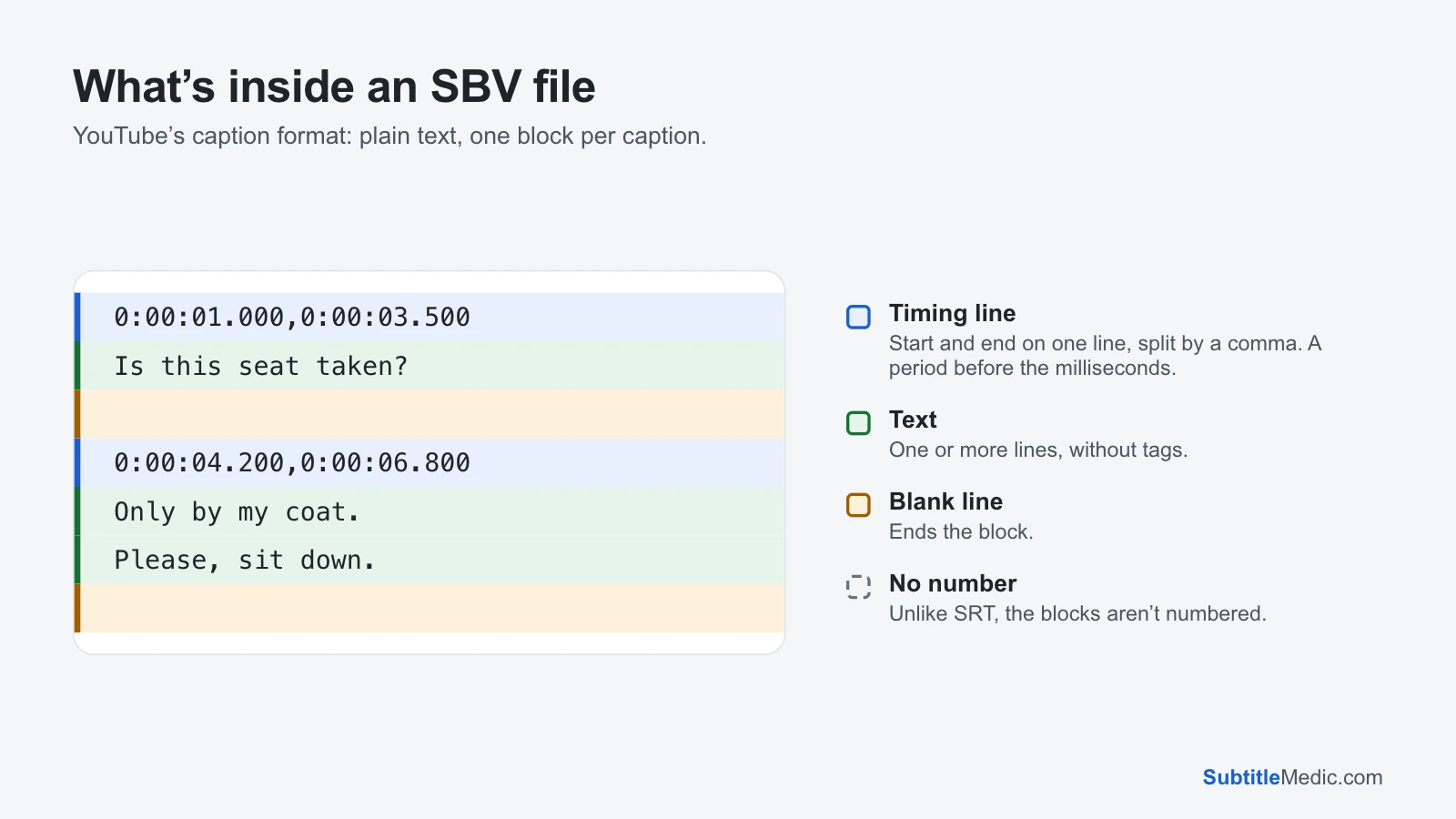
SBV is the format YouTube uses for captions in YouTube Studio. It is a simple version of an older format called SubViewer, and it holds only two things: when each caption appears, and what it says.
 Open full size (new tab)
Compared with SRT, the file most players expect, there are three differences: no number above each caption, start and end on one line split by a comma, and a period before the milliseconds. Small differences, but enough that a player built for SRT finds nothing it can read.
You may also meet .sub files that start with [INFORMATION]. That is SubViewer 2.0, an older cousin of SBV. Convert SUB to SRT reads those.
Open it to read
On Windows, right-click the file, choose Open with, then Notepad. To make that the default, tick Always use this app or choose it under Choose another app.
On a Mac, right-click the file and choose Open With → TextEdit. If TextEdit isn’t listed, choose Other… and pick it from Applications.
On a phone, open it with any text viewer or a file manager that shows text files. Reading works fine; editing on a small screen is easier in a browser tool, see below.
Files downloaded from YouTube are saved as UTF-8, so accented letters and other alphabets show correctly in any modern editor.
Play it with your video
VLC (version 3 and later) reads SBV. Give the caption file the same name as the video, such as talk.mp4 and talk.sbv, and keep them in the same folder: VLC loads it by itself. Or, while the video plays, choose Subtitle → Add Subtitle File and pick the .sbv.
Most other players don’t. Smart TVs, Plex, Jellyfin, phone players and video editors usually expect SRT. For those, convert the file first (see below). It takes seconds and the timing stays exactly the same.
Want to check it quickly in a browser? Subtitle Player opens your video and the .sbv side by side and plays the captions on the picture. Nothing is installed and nothing is uploaded.
Edit it
In a text editor, change the words and leave the structure alone:
- Keep each timing line in the form
0:00:01.000,0:00:03.500, with the comma between start and end. - Keep one blank line between captions.
- Save as plain text in UTF-8. In TextEdit, choose Format → Make Plain Text before saving if the file was converted to rich text.
In your browser, the Subtitle Editor opens .sbv files directly. Every caption is listed with its start, end and text, you can play your video next to them, fix a word, move a caption or delete one, and download the file as .sbv again.
Put it back on YouTube
YouTube accepts the edited file as it is:
- In YouTube Studio, choose Subtitles in the left menu and click the video.
- In the row of the language, choose Add under Subtitles, then Upload file.
- Pick With timing, then choose your
.sbvfile. - Check a few lines in the preview, then save.
YouTube takes .srt and .vtt the same way, so you can also upload a file you edited in another format.
Use it anywhere else: convert it
- For a TV, Plex, a phone player or a video editor such as Premiere Pro, DaVinci Resolve or CapCut: Convert SBV to SRT.
- For a website with an HTML5 player, or a platform that asks for WebVTT: Convert SBV to VTT.
Both keep every caption and its timing to the millisecond. Only the notation changes. The file is converted in your browser and never uploaded.
When an SBV file won’t open
You renamed it to .srt and the player shows nothing. Renaming doesn’t change what’s inside: the player looks for numbers and an arrow --> and finds neither. Convert it instead of renaming.
The letters look wrong. Files from older captioning tools are sometimes saved in a regional encoding instead of UTF-8. Fix Subtitle Encoding reads .sbv files, finds the right encoding and saves them as UTF-8.
Each caption is tiny and they overlap. That is how YouTube’s automatic captions are made: short pieces that roll onto the screen. They convert correctly, but read better on YouTube than in a player.
The captions are early or late. If you trimmed the start of the video after captioning it, every caption is off by the same amount. Shift Subtitle Timing moves them all at once and keeps the .sbv format.
To compare SBV with the format most players use, see What is an SRT file? And to put the converted file on a video, How to add subtitles to a video covers each device.