Kodi subtitles out of sync? Pick the right offset, then fix the file
Updated October 29, 2026
Kodi gives you two delay settings during playback, one for audio and one for subtitles, and changing the wrong one makes things worse. Before you touch either, work out which track is actually off. Then use the offset to find the right value, and fix the subtitle file so you never have to set it again.
Audio offset or subtitle offset?
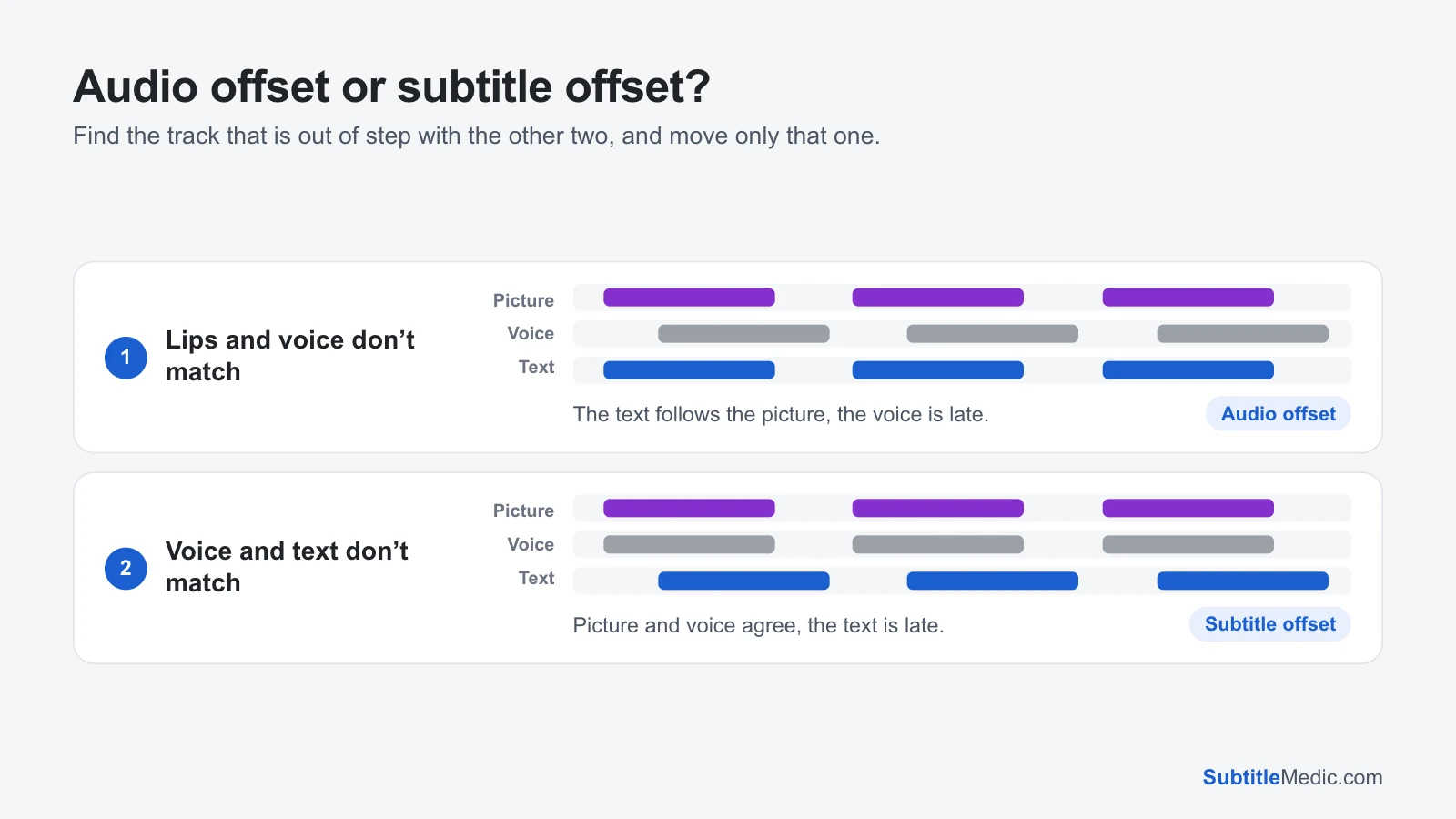
Watch a close-up of someone talking and compare three things: the lips on screen, the voice you hear and the text.
 Open full size (new tab)
- The lips don’t match the voice. The sound is off, not the subtitles. This is common with TVs and sound systems that process the audio. Use Audio offset; the subtitles will follow once the voice is right.
- The lips match the voice, but the text doesn’t. Only the subtitles are off. Use Subtitle offset.
If you change the subtitle offset to make up for an audio delay, the text will match the voice but not the lips, and the sound stays late in every other video.
Why the subtitles are off
A subtitle file holds a start and end time for each line, fitted to one release of the film. When yours differs, so does the timing:
- A different start, such as a studio logo or a recap, moves every line by the same amount.
- A different frame rate, usually 25 fps against 23.976 fps, makes the gap grow through the film.
- A different cut adds or removes scenes, so the gap jumps at each cut.
- A downloaded subtitle from a Kodi subtitle add-on may have been timed for another release than yours.
Check one line near the start and one near the end. The same gap both times is a delay; a gap that grows is a frame rate problem. How to fix subtitles out of sync explains how to tell the three kinds apart.
Step 1: Set the subtitle offset in Kodi
- During playback, open the on-screen controls.
- In the default Estuary skin, open the Subtitles settings. In older versions and some skins, the option sits in the Audio settings instead.
- Choose Subtitle offset and move it until a line appears as the actor starts speaking. If the text came first, the subtitles need to show later; if it came after, earlier.
- Close the menu and check another line a few minutes later.
Kodi usually remembers the offset for that video on that device, but nowhere else: your phone, another Kodi box or a different player still get the original timing. Users also report that the stored value belongs to the video, not to the subtitle track, so switching to another language keeps the same offset even if that file was already right.
Note the value that works. If it is the same at the start and the end, you have everything you need for the next step.
Step 2: Fix the file so it stays fixed
A constant delay. Open Shift Subtitle Timing and drop the .srt, .ass or .vtt file in. Choose Too early → show later when the text came before the voice, Too late → show earlier when it came after, and type the seconds from Kodi. The file is saved in the format it came in.
The gap grows. Change Subtitle Frame Rate asks which way the text drifts and suggests the conversions that fit, with how far each one moves the last line. Use the one that puts the last line on the voice, then check the first line again.
Another subtitle is in sync. Sync Two Subtitles compares a file that matches your video with the one that doesn’t, and shifts or stretches the broken one to match. The two can be in different languages.
Only a few lines are wrong. Open the file in the Subtitle Editor with your video next to it, pause where the speech starts and set that line’s start time there.
Your files stay on your device; nothing is uploaded.
Step 3: Load the fixed file in Kodi
- Save the file in the video’s folder, with the video’s name:
Movie (2024).mkvandMovie (2024).en.srt. If you set a custom subtitle folder in Kodi’s settings, save it there instead. - Remove the old file so Kodi doesn’t pick it up first.
- Set the subtitle offset back to 0 for that video, or Kodi adds it to the fixed timing.
- Start the video and choose the new file in the subtitle list.
If it still isn’t right
Downloaded subtitles are always off. In the subtitle search results, prefer one whose release name matches your file, such as BluRay or WEB-DL and the same group name. Many add-ons mark results that match your exact file. If none fits, download the closest one and fix it as above.
It drifts even after a frame rate fix. Check the last line, not the first. If the gap at the end is a few seconds rather than minutes, try the 23.976 ↔ 24 conversion instead of 25.
Fine for twenty minutes, then off. Your copy has a scene the subtitle’s copy doesn’t. In Shift Subtitle Timing, use From line and To line to shift only the lines after that point.
Both audio and subtitles seem late. Set the audio offset first until lips and voice match, then check the subtitles again. They are often right once the sound is.
If you see broken letters or question marks rather than wrong timing, the file is not saved as UTF-8; Fix Subtitle Encoding repairs it in a few seconds.