Jellyfin subtitles out of sync? Fix the offset, then the file
Updated October 29, 2026
The film plays fine in Jellyfin, but the subtitles appear a second before anyone speaks, or they trail behind the voices. Jellyfin shows every line at the time stored in the subtitle file, so when the file was made for another copy of the film, the timing is wrong in every app.
The web player has a subtitle offset you can use to find the right value. Then fix the file itself, so the Android TV app, the phone app and every browser show it on time without touching a setting.
Why Jellyfin subtitles are out of sync
A subtitle file doesn’t know which video it belongs to. Its times fit one release, and yours may differ:
- The start is different. A studio logo, a recap or a few seconds of black more or less at the beginning moves every line by the same amount.
- The frame rate is different. A file timed for a 25 fps copy drifts against a 23.976 fps one, by several minutes over a feature film.
- Scenes were added or cut. The gap changes after each cut.
- The subtitle was downloaded by a plugin. Jellyfin’s subtitle plugins search by title and pick from files made for many releases; the best match by name isn’t always timed for your copy.
Step 1: Find the direction and the size of the gap
Pause on a line of dialogue near the start. Note when the voice starts and when the text appears; the difference is the offset you need. Then do the same near the end.
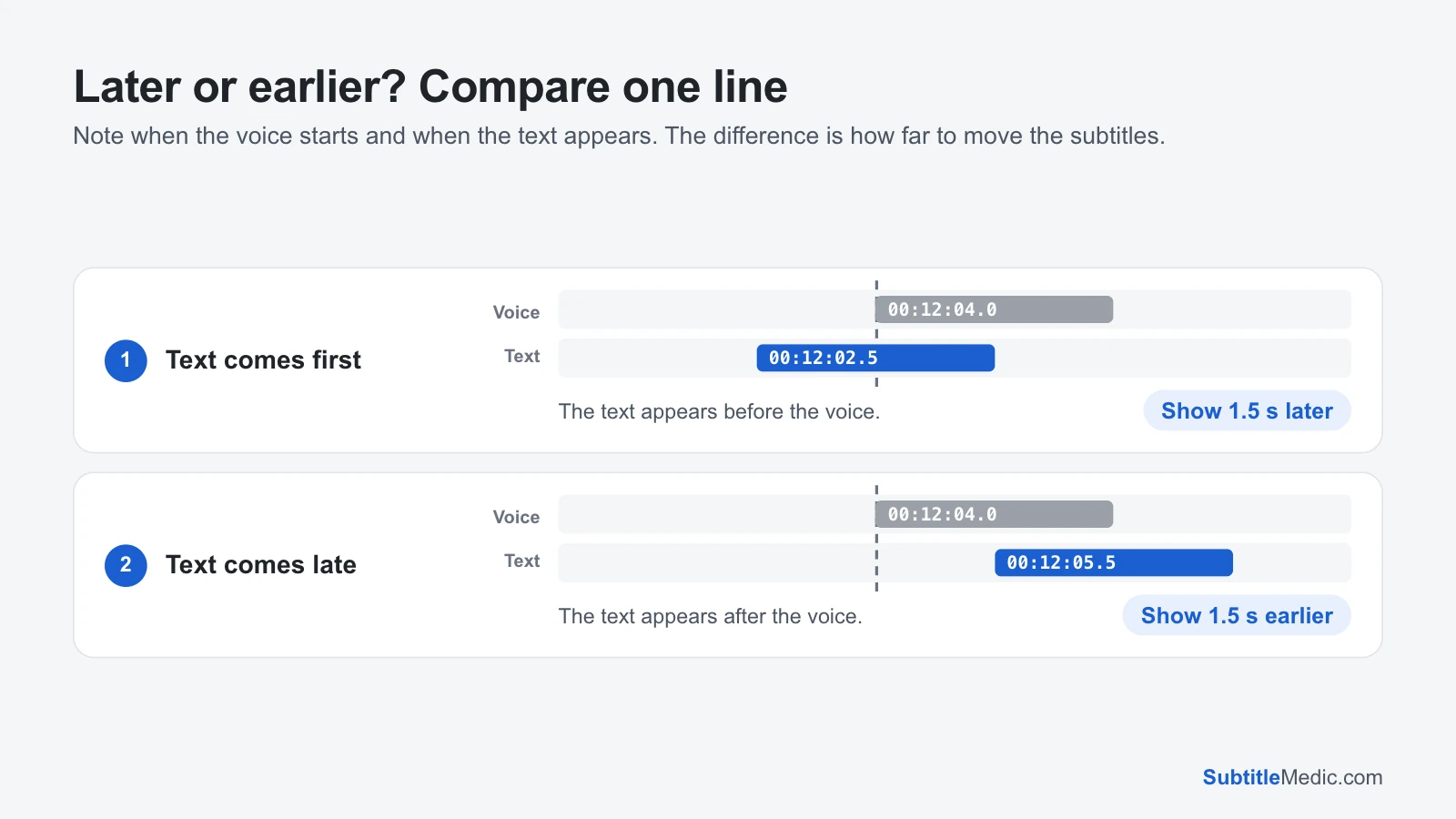 Open full size (new tab)
- If the gap is the same at the start and the end, one shift fixes it.
- If it grows toward the end, the frame rate is wrong and a shift will only fix the first scenes.
- If it jumps after a certain scene, the cut is different. Each stretch between the jumps needs its own shift; step 3 shows how.
How to fix subtitles out of sync explains the three kinds in more detail.
Players don’t agree on whether a positive offset means “later” or “earlier”. Try a small value first and watch which way the text moves.
Step 2: Use the subtitle offset in the web player
In Jellyfin’s web player, open the subtitle or playback settings during the video and look for Subtitle offset. Move it until a line appears as the actor starts speaking. A few things to know:
- It works with text subtitles such as SRT and VTT. It isn’t offered when the server burns the subtitles into the picture, which happens when it transcodes the video or when a client can’t draw the subtitle format itself.
- The range is limited. Users report it stops at about 30 seconds either way.
- Some apps, such as the player built into the mobile app, don’t have the setting at all.
- The value belongs to that playback. Your TV app and other users don’t get it.
So the offset is the quickest way to measure the delay. Note the value that works, then fix the file.
Step 3: Fix the file once
A constant delay. Open Shift Subtitle Timing and drop the subtitle file in. Choose Too early → show later when the text came before the voice, or Too late → show earlier when it came after, and enter the seconds you found. Open the video under Preview if you want to check a few lines first.
You’d rather measure it by watching. Subtitle Player plays your video in the browser with the subtitles on top. Nudge them with the ±0.1 s and ±1 s buttons until they match, then download the file with that offset.
A gap that grows. Change Subtitle Frame Rate asks which way the text drifts and shows how far each common conversion moves the last line. Choose the one that puts the last line on the voice.
A gap that jumps after a scene. In Shift Subtitle Timing, set From line to the first line after the jump and To line to the last line before the next one, apply the shift for that stretch alone, then do the same for the next stretch. The preview shows which lines each shift covers.
One file in sync, one not. If another subtitle for the same video is already right, Sync Two Subtitles measures the gap between the two and shifts or stretches the broken one to match.
The files are read in your browser and never uploaded.
Step 4: Replace the file in your library
- Save the fixed file in the video’s folder with the video’s name and a language code:
Movie (2024).mkvandMovie (2024).en.srt. Add.forcedfor a file that only translates signs. - Remove the old file, or Jellyfin lists both tracks and may pick the wrong one.
- In Jellyfin, open the item’s ⋯ menu and choose Refresh metadata, so the server finds the new file.
- Reset the subtitle offset in the web player to zero, then start playback and choose the new track.
If the subtitle came from a plugin, it may be saved in Jellyfin’s metadata folder instead of next to the video, depending on your library settings. Get the same file from the subtitle site, or one made for your release, fix it, and save it next to the video as above.
When it still doesn’t line up
The offset option is missing. The server is probably burning the subtitles in. Styled ASS subtitles often cause that. Convert them with ASS to SRT so the client can draw them itself; that also saves server power.
Only one episode of a series is off. That episode is usually from a different source, such as a TV recording among Blu-ray rips. Fix its file on its own.
The whole season is off by the same amount. Shift each file by that amount; the steps are the same for every episode.
Letters are broken instead. Question marks or é in place of accented letters are an encoding problem, not a timing one. Fix Subtitle Encoding saves the file as UTF-8, which every Jellyfin client reads.