Your own subtitles are out of sync on Netflix? Fix the file first
Updated October 29, 2026
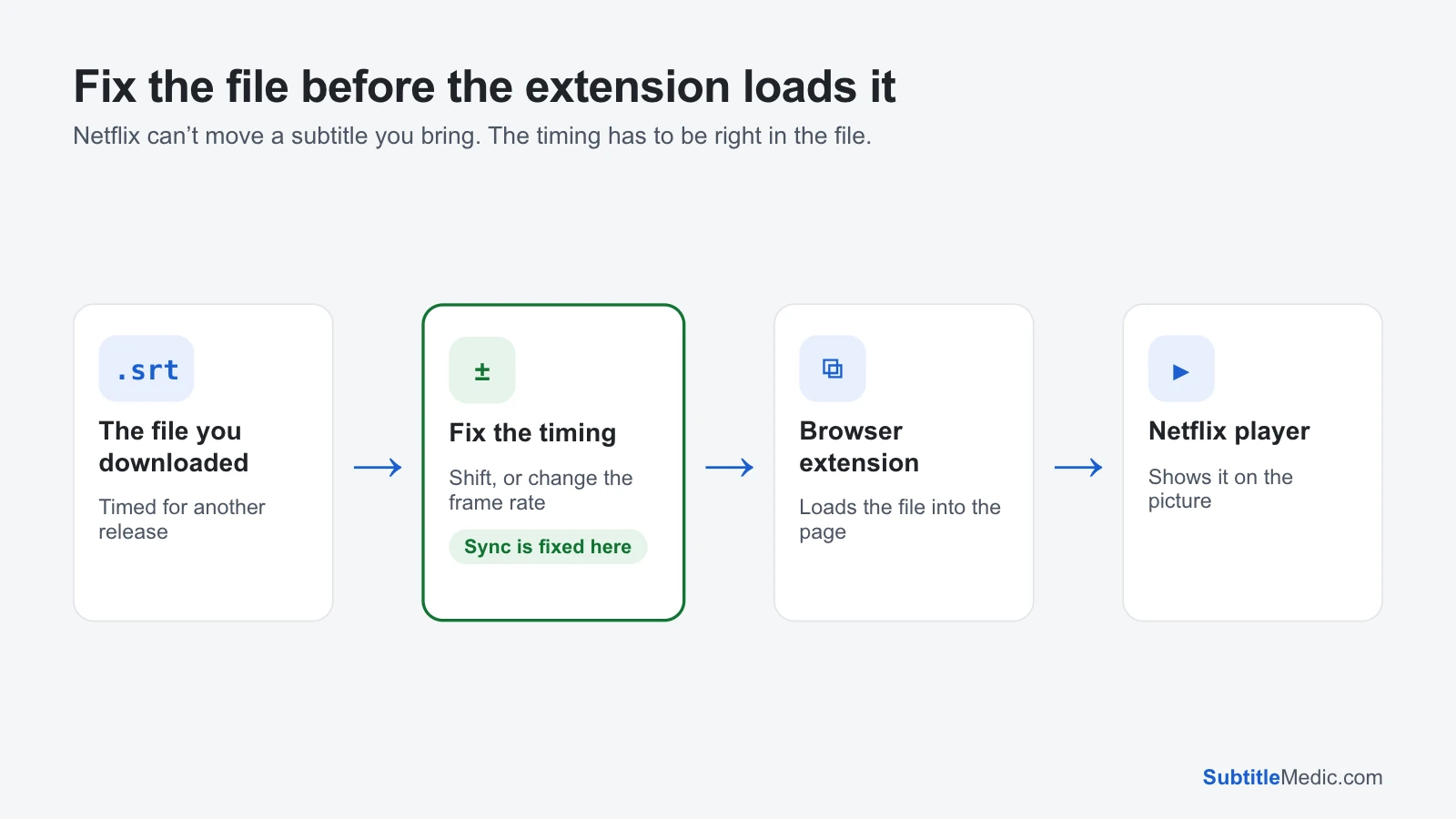
Netflix only offers the subtitle tracks it ships with. To watch with a file of your own, say a language Netflix doesn’t have or a fan translation, you need a browser extension that loads the file and draws it over the Netflix player. And very often that file is a few seconds early or late, or slowly drifts away from the voices.
The reason is almost never the extension. The subtitle was timed for another copy of the film, and the fix belongs in the file.
How your own subtitles get onto Netflix
On a computer, in Chrome or a similar browser, a subtitle extension adds a button to the Netflix page. You pick an .srt file (some extensions also take .vtt or .ass), and the extension shows its lines on top of the video, using the time in the player.
There are several such extensions (for example Substital or Netflix Subtitles+). They change often and can stop working when Netflix updates its player, so check the recent reviews and the date of the last update before you install one. They only work in a desktop browser: the Netflix apps on TVs, phones and consoles can’t load a file.
 Open full size (new tab)
Why the file doesn’t match the Netflix version
Subtitle files store a start and end time for every line, measured from the first frame of one particular release. The Netflix stream is often not that release:
- A different opening. The subtitle may have been made for a Blu-ray with studio logos, or a TV copy with a recap. On Netflix the film starts at another moment, so every line is off by the same amount.
- A different frame rate. A file timed for a 25 fps European DVD or TV copy runs ahead of the 23.976 fps version Netflix usually streams for films, and the gap grows with every minute.
- A different cut. Netflix may carry a theatrical cut where your subtitle was made for an extended edition, or the reverse. The gap then changes at each missing or added scene.
Step 1: Measure the gap at the start and the end
Play a line near the beginning and note how far the text is from the voice, then do the same near the end.
- Same gap at both ends: a constant delay.
- In sync at the start, far off at the end: a frame rate mismatch.
- Right, then suddenly wrong: a different cut.
Many extensions have a delay slider. It’s handy for measuring: move it until a line matches and note the value. But it usually resets with the next episode or the next visit, and it can’t fix a frame rate drift. How to fix subtitles out of sync explains the three kinds in more detail.
Step 2: Fix the timing in the file
A constant delay. Open Shift Subtitle Timing, drop the file in, choose Too early → show later or Too late → show earlier and enter the seconds you measured. Keep the extension’s delay at zero afterwards, or it adds to the fix.
A growing gap. Open Change Subtitle Frame Rate and say which way the text drifts. A file from a 25 fps copy shows its lines earlier and earlier on the Netflix version, and “PAL → film” is almost always the fix. The tool shows how far each choice moves the last line, so you can compare it with the gap you saw.
A gap that jumps. Shift one stretch of lines at a time: in Shift Subtitle Timing, set From line and To line to the lines after the jump and apply a separate shift.
The tools run in your browser. Your subtitle file is never uploaded.
Step 3: Give the extension a format it reads
Most extensions read SRT, and some prefer WebVTT. If yours refuses the file or shows nothing:
- Convert a
.vttfile with VTT to SRT, or an.srtwith SRT to VTT if the extension asks for VTT. - If accented letters show as
éor question marks, the file isn’t UTF-8. Fix Subtitle Encoding converts it. - Styled
.assfiles may lose their positions or show codes like{\an8}. Turning them into plain SRT first with ASS to SRT usually works better.
Then reload the Netflix page, start the episode, load the fixed file in the extension and check a line near the start and one near the end.
When Netflix’s own subtitles are out of sync
If the problem is with a subtitle track Netflix provides, no file is involved and there is nothing to edit. Usually it is a playback glitch:
- Switch the subtitles off and on again, or to another language and back.
- Close the episode and start it again; on a TV, restart the Netflix app.
- Check another device. If the same title is off everywhere, report it through Netflix’s help pages so they can fix the track.
Tips for files that work the first time
- Pick a subtitle whose release name says WEB-DL or NF (Netflix): those were usually timed against a streaming copy.
- Avoid files from DVD or PAL releases for Netflix films unless you are ready to change the frame rate.
- Keep the fixed file, and name it after the title and episode, so you don’t have to fix it again next time.