MX Player subtitles showing weird characters? Fix it on your phone
Updated October 29, 2026
You download a film and its subtitles to your Android phone, open them in MX Player, and the text is full of symbols: é for é, question marks in diamonds, or empty boxes where letters should be. The subtitle itself is usually fine. MX Player is reading it with the wrong encoding, or drawing it with a font that doesn’t have those letters.
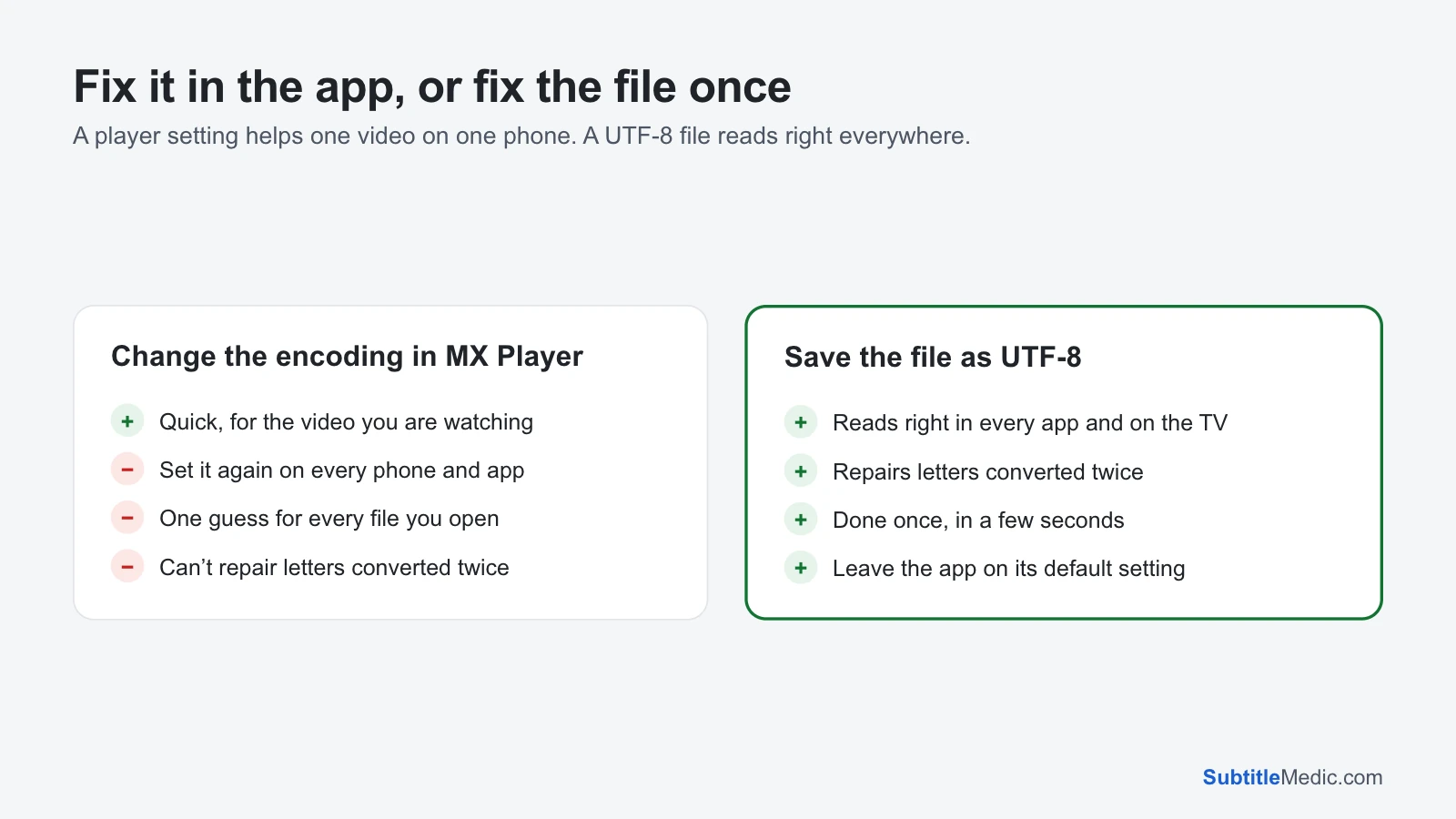
You can fix it inside the app, for this video on this phone, or fix the file once so it reads right everywhere.
What the symbols tell you
é,è,đ: the file is UTF-8 but was read as an old Western code page, or it was converted twice before it reached you.?or�in place of letters: the file was saved in an old regional code page, such as Windows-1252 or Windows-1250, and was read as UTF-8.- Letters from another alphabet inside words: the wrong regional code page was picked.
- Empty boxes
□: the encoding is right, but the subtitle font has no shapes for those letters.
Subtitle files don’t say which encoding they use, so a player has to guess. Most new files are UTF-8, which every app reads the same. Older files, and many on subtitle sites, aren’t.
 Open full size (new tab)
Fix 1: change the subtitle encoding in MX Player
Many versions of MX Player have a text encoding option among the subtitle settings, either in the app’s settings or in the subtitle menu while a video plays. Its name and place differ between versions.
- Open the subtitle settings and find the text encoding option.
- Pick the encoding of your file, for example Windows-1252 for Western European languages, Windows-1250 for Central European, Windows-1251 for Cyrillic. Use UTF-8 or auto-detect for files that are already UTF-8.
- Reopen the video so the subtitle is read again.
This works for one file at a time. The choice applies to every subtitle you open afterwards, so a file in another language may break, and it doesn’t help on your TV or another phone.
Fix 2: save the file as UTF-8, right on your phone
Fix Subtitle Encoding works in the browser on your phone; nothing to install.
- Open the page in Chrome and pick the subtitle file, for example from Downloads.
- The tool detects which encoding the file was written in and shows the decoded text, with accented letters highlighted. If two readings are close, it shows both; pick the one that reads right.
- If the text has
é-style damage written into it, keep Repair damaged letters on. - Download the fixed file. It keeps its name and format, now as UTF-8.
- Make sure the subtitle sits in the same folder as the video, with the same name:
Movie.mp4andMovie.srt. Or open it from MX Player’s subtitle menu. - If you changed the encoding in MX Player earlier, set it back to UTF-8 or auto-detect.
The file is read on your phone and never uploaded.
Empty boxes: the font
If the letters are right in the tool’s preview but MX Player shows boxes, the font is the problem. MX Player can use a different subtitle font: look for the font option in the subtitle settings, including a folder for your own fonts. Pick a font that covers your language, such as a Noto font. Styled ASS subtitles may ask for a font of their own; ASS to SRT turns them into plain subtitles drawn with your chosen font.
Other problems that look similar
Codes on screen, such as {\an8}, {\i1} or <font color="#ffffff">: formatting tags the player didn’t apply. Remove Formatting from Subtitles removes them and can keep italics.
The subtitle doesn’t appear at all. Check the file name matches the video exactly, including hidden extensions such as .srt.txt. How to add subtitles to a video explains the naming that players expect.
Want to check before copying to the phone? Subtitle Player plays your video in a browser with the subtitles on it, so you can see the letters before you move the files.
For the same problem on a computer, see VLC subtitles showing weird characters.
On a TV, see smart TV subtitles showing weird characters; with a media server, Jellyfin subtitles showing weird characters.