Smart TV subtitles showing weird characters? Three symptoms, three fixes
Updated October 29, 2026
The subtitle looks fine on your computer, but on the TV every accented letter turns into a symbol: é, a question mark, a diamond with a question mark in it, or an empty box. This happens on Samsung, LG, Sony, Hisense, TCL and Android TV sets alike, when you play a film from a USB stick or a home server.
TVs are strict where computer players are forgiving. VLC on a PC guesses the encoding of a subtitle file and usually gets it right; most TV players don’t guess. They expect UTF-8, and anything else comes out garbled.
Three symptoms, three causes
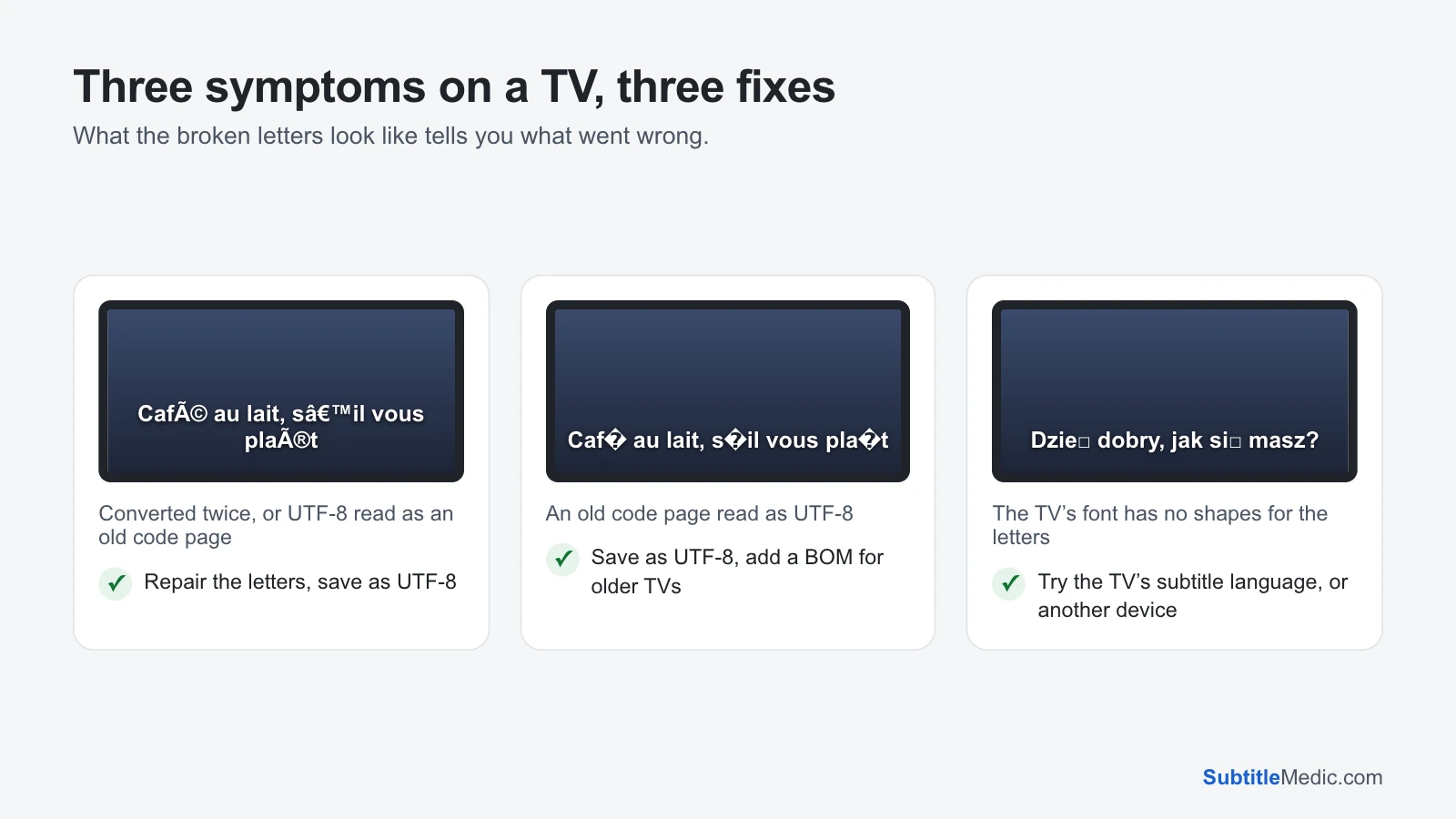 Open full size (new tab)
é,è,’: the letters were converted twice before the file reached you, or a UTF-8 file was read as an old Western code page. The damage may now be inside the file itself.?or�in place of letters: the file is in an old regional code page, such as Windows-1252 or Windows-1250, and the TV read it as UTF-8.- Empty boxes
□where the rest of the line is right: the TV’s built-in font has no shapes for those letters. This is a font problem, not a file problem.
Fix the file: save it as UTF-8
- Open Fix Subtitle Encoding on your computer and drop the subtitle in. It works out which encoding the file was written in and shows the decoded text, with accented letters highlighted. If two readings are close, it shows both so you can pick the right one.
- If the text has
é-style damage, keep Repair damaged letters on; it turns those words back. - Download the file. It keeps its name and format, now in UTF-8.
- Copy it to the USB stick next to the video, with exactly the same name:
Movie.mkvandMovie.srt. - If an older TV still shows wrong letters, download again with Add a BOM for older TVs and players ticked. Some sets only recognise UTF-8 when the file starts with that mark.
The file is processed in your browser and never uploaded.
Empty boxes: the TV’s font
If the letters look right in the tool’s preview but the TV shows boxes, the TV can’t draw them. Once the file is UTF-8, leave the TV’s subtitle encoding or code page option on its default or on UTF-8: setting it to a regional code page makes the TV read the correct file wrongly, and the boxes turn into new symbols.
Some sets switch to a fuller font when the subtitle language is set to yours, so that option is worth a try. If your TV has none, play the video through a streaming box or a phone cast to the TV: their players draw the text with their own system’s fonts, which often include more letters.
Also check the format
Many TVs read only SRT reliably. Other formats can show as codes or not at all:
- A
.vttfile from a website: convert it with VTT to SRT. - A styled
.assor.ssafile: convert it with ASS to SRT. TVs often print its styling as text. - Codes like
{\an8}or<font color="#ffffff">on screen: Remove Formatting from Subtitles removes them.
Fix the encoding first, then convert, so the converted file carries the right letters.
Played through a media server
When the TV plays the film through the Plex or Jellyfin app, wrong letters almost always come from the file: fix it where it is stored on the server, add a BOM if one app still misreads it, then refresh the item’s metadata in Plex or Jellyfin and pick the subtitle again. Over DLNA, the TV’s own media player usually receives the raw file and reads it itself, just as from a USB stick: the file has to be UTF-8, with a BOM for older sets, and the TV’s subtitle encoding setting on its default or UTF-8. Boxes depend on the device that draws the text. Jellyfin subtitles showing weird characters shows where along the way each symptom appears.
By brand
The steps above work on every TV. For brand-specific settings, file names and folder rules, see subtitles not showing on a Samsung TV and subtitles not showing on an LG TV. If the subtitles don’t appear at all, start with why subtitles don’t show on a TV.