Jellyfin subtitles showing weird characters? Find where the letters break
Updated October 29, 2026
Jellyfin plays the film, but the subtitles read Café instead of Café, show question marks for accented letters, or put empty boxes where Vietnamese, Greek or Cyrillic letters should be. Sometimes the same file looks fine in the browser and broken on the TV app.
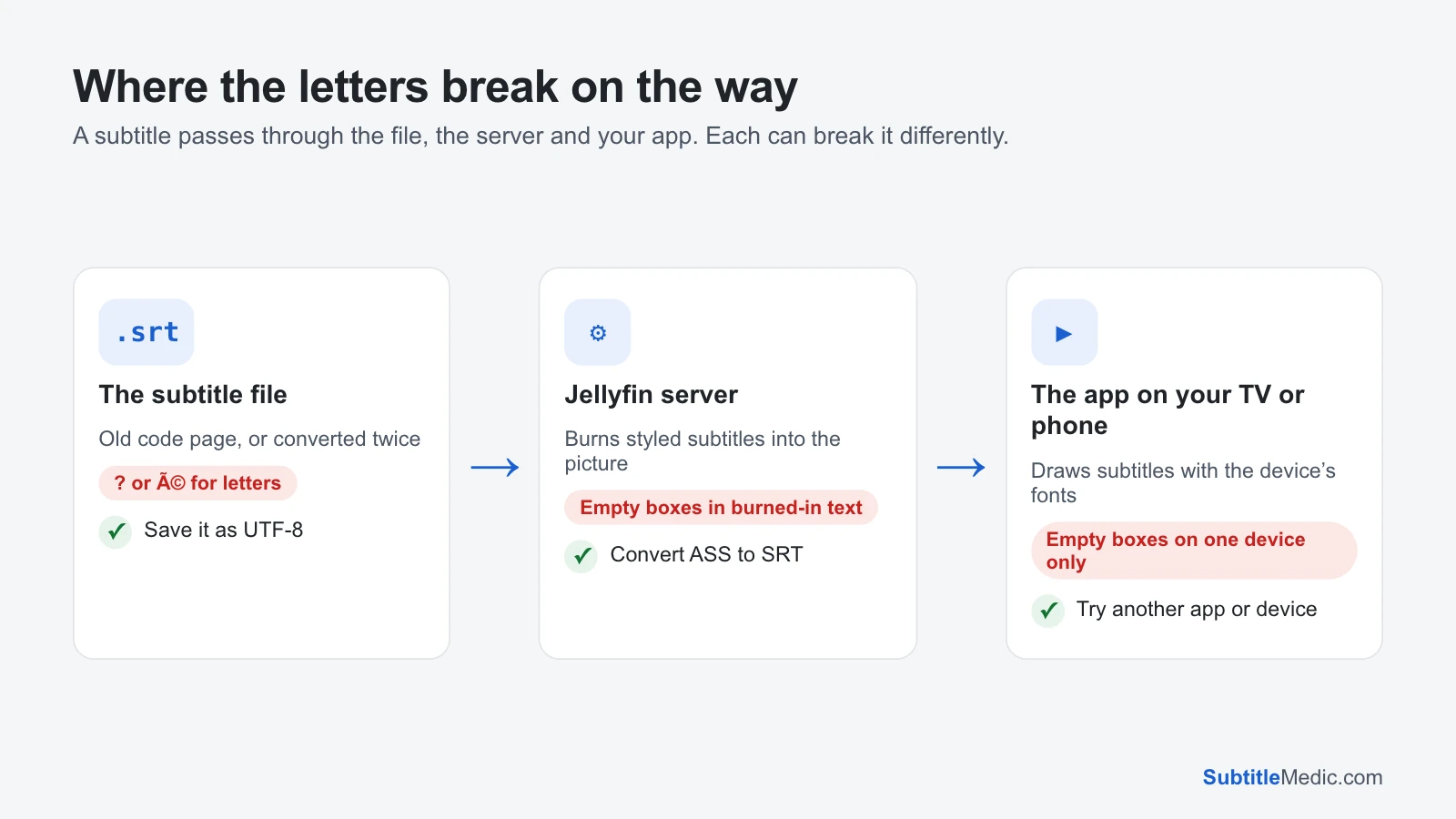
A subtitle passes through three places before you see it: the file, the Jellyfin server and the app on your device. Each one can break the letters in its own way, and the symptoms tell you which.
Where the letters break
 Open full size (new tab)
é,?or�in place of letters: the file is in an old encoding, or it was damaged by a bad conversion. Fix the file. If only one app shows them, add a BOM as well (step 5 below).- Boxes
□in styled ASS subtitles: the fonts they ask for are missing, either on the server when it burns the subtitles into the picture, or in the web app when it draws them itself. - Boxes in a plain SRT on one app only, while the web app is fine: that app draws text with the device’s fonts.
Why the file is the usual cause
A subtitle file is plain text without a label saying which encoding it uses. Today’s files are mostly UTF-8. Older ones, and many on subtitle sites, were saved in a regional code page such as Windows-1252 (Western Europe), Windows-1250 (Central Europe), Windows-1251 (Cyrillic) or Windows-1258 (Vietnamese).
Jellyfin tries to work out the encoding of external text subtitles before it sends them to the app. On short files, or files that are mostly plain English letters with a few accents, the guess can go wrong. A file in UTF-8 never needs a guess.
Fix the file: save it as UTF-8
- Find the subtitle in your media folder, next to the video, for example
Movie (2024).fr.srt. - Open Fix Subtitle Encoding and drop the file in. It detects which encoding the file was written in and shows the decoded text, with accented letters highlighted. If two readings are close, both are shown so you can pick the one that reads right.
- If the file has
é-style damage written into it, leave Repair damaged letters on. - Download the fixed file and replace the old one, keeping the same name.
- If one of your apps still shows wrong letters, download again with Add a BOM for older TVs and players ticked. The BOM is a short mark at the start of the file that says “this is UTF-8”.
- In Jellyfin, open the item’s ⋯ menu, choose Refresh metadata, then start playback and pick the subtitle again.
The file is read in your browser and never uploaded.
Boxes in styled ASS subtitles: fonts
Styled ASS subtitles name their own fonts, and two things can happen to them:
- The web app draws them itself. It uses the fonts attached to the video and, when those are missing, the fallback fonts set on the server. In the Jellyfin dashboard, look under Playback → Transcoding for Enable fallback fonts and a fallback font folder, and put fonts that cover your language there, such as a Noto font.
- The server burns them into the picture, for apps that can’t draw ASS. Then the fonts available to the server’s video converter decide, and the fallback font setting doesn’t help. ASS to SRT gives you a plain subtitle that most apps draw themselves, so nothing is burned in and the letters stay.
Boxes on one app only
If the web app shows the subtitle correctly and one TV or streaming-box app doesn’t, the file is fine. That app draws subtitles with the fonts of the device, and some TVs have very few. Try another Jellyfin client on the same device if there is one, look for a subtitle font option in the app’s settings, or let the server burn the subtitle in for that device. Why subtitles don’t show on a TV covers what TVs can and can’t read.
Other things that look like encoding problems
Codes on screen, such as {\an8} or <font color="#ffff00">: some apps print formatting tags instead of applying them. Remove Formatting from Subtitles strips them out and keeps italics if you want.
Broken letters in a subtitle inside the MKV. Extract the track with Extract Subtitles from MKV, fix it, and save it next to the video as an external file. Jellyfin then lists both tracks; pick the external one.
Subtitles from a plugin. Files downloaded by a subtitle plugin come in the uploader’s encoding. If one is broken, get the same file from the subtitle site, fix it, and keep it next to the video.
For the same problem in other players, see Kodi subtitles showing weird characters and Plex subtitles showing weird characters.
If the TV’s own media player shows the same file wrong from a USB stick, see smart TV subtitles showing weird characters.