Kodi subtitles showing weird characters? Encoding or font, and the fix
Updated October 29, 2026
You start a film in Kodi and the subtitles are full of odd symbols: é where an é should be, question marks, or empty boxes in place of whole letters. Kodi can show subtitles in almost any language, but only when two things line up: it reads the file with the right encoding, and it draws the text with a font that has those letters.
The two problems look alike on screen, and each has its own fix. Find out which one you have first.
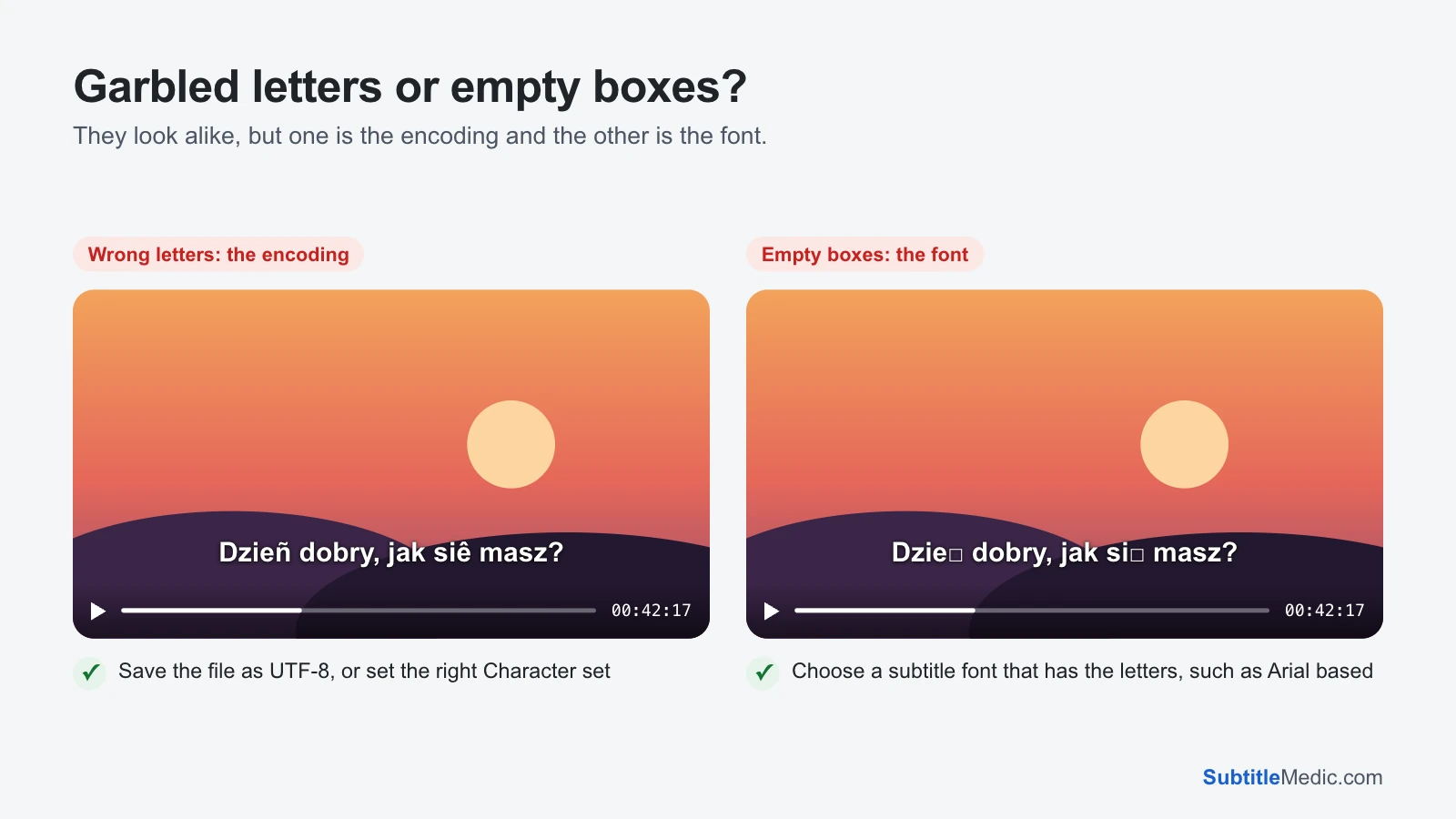
Garbled letters or empty boxes?
 Open full size (new tab)
- Wrong letters such as
é,đ,?or�, or letters from another alphabet in the middle of a word: Kodi read the file with the wrong encoding. The text in the file is fine; Kodi is using the wrong table to turn its bytes into letters. - Empty boxes
□while the rest of the line is right: the encoding is fine, but the subtitle font has no shapes for those letters. This happens most with Vietnamese, Greek, Cyrillic, Arabic and Asian scripts.
Why Kodi gets the letters wrong
A subtitle file is plain text, and plain text doesn’t say which encoding it was saved in. New files are usually UTF-8, which covers every language. Older ones were saved in a regional Windows code page: Windows-1252 for Western Europe, Windows-1250 for Central Europe, Windows-1251 for Cyrillic, Windows-1258 for Vietnamese, and so on.
Kodi reads UTF-8 files correctly by itself. For anything else it uses the Character set in its settings, which is one fixed choice for every subtitle you play. Set it for your Polish files and your Russian ones break.
Fix 1: set the character set in Kodi
- Open Settings → Player → Language. Depending on your Kodi version and skin, the option may sit under Settings → Interface → Regional instead.
- Find Character set and pick the code page of your subtitles, for example Central Europe (Windows) for Polish or Czech, Cyrillic (Windows) for Russian, or Vietnamese (Windows).
- Stop the video and play it again. Kodi reads the subtitle when it loads it.
This helps when all your old subtitles are in the same language. It has limits: it changes how every non-UTF-8 file is read, it has to be set again on each Kodi device, and it can’t fix a file whose letters were already damaged by a bad conversion, like é written into the file itself.
Fix 2: save the subtitle as UTF-8, once
The lasting fix is to convert the file, so Kodi and every other player read it without any setting.
- Open Fix Subtitle Encoding and drop the subtitle in. It works out which encoding the file was written in and shows the decoded text with accented letters highlighted. When two readings are close, it shows both so you can choose the one that reads right.
- If the file contains
é-style damage, keep Repair damaged letters switched on. - Download the file and put it next to the video, replacing the old one. Keep the name, such as
Movie (2024).en.srt. - Set Kodi’s Character set back to Default, so it reads the UTF-8 file as it is.
The file is read in your browser and never uploaded.
Empty boxes: change the subtitle font
- Open Settings → Player → Language (or Subtitles in some versions).
- Set Font to use for text subtitles to Arial based. It covers far more scripts than the default font.
- Play the video again.
If you added your own fonts, pick one that includes your language, such as a Noto font for Asian scripts. Styled ASS subtitles may name a font of their own; when that font is missing, Kodi falls back to another one that may lack the letters. Converting them with ASS to SRT makes Kodi use the font you chose.
Other things that look like encoding problems
Codes on screen, such as <font color="#ffffff"> or {\an8}: these are formatting tags the player didn’t interpret. Remove Formatting from Subtitles removes them and can keep italics.
Broken letters in a subtitle inside the MKV. You can’t change an embedded track in Kodi. Save it as a file with Extract Subtitles from MKV, fix it with Fix Subtitle Encoding, and put it next to the video. Then pick the external file in Kodi’s subtitle list.
Subtitles from a Kodi subtitle add-on. These come in whatever encoding their uploader used. If one shows symbols, find where it was saved, or download the file from the subtitle site yourself, fix it once and keep it next to the video.
Some files are right, others wrong. That usually means a mix of UTF-8 files and old code pages. With the Character set on Default and every old file converted to UTF-8, all of them read the same.
The same fix works for other players: see Plex subtitles showing weird characters and VLC subtitles showing weird characters.
On a phone or a TV, the same symptoms have their own fixes: see MX Player subtitles showing weird characters and smart TV subtitles showing weird characters.