Chromecast subtitles not showing: why they stay behind, and the fix
Updated October 28, 2026
A classic Chromecast has no player of its own and no subtitle menu. It plays whatever the app on your phone or computer sends it, and the subtitles only reach the TV if that app sends them too. That is why a film can show its subtitles on your laptop and lose them the moment you cast it.
Two kinds of device carry the Chromecast name. The plain dongles, controlled from a phone or Chrome, are the subject of this guide. The Chromecast with Google TV has its own remote and apps, works like an Android TV, and is covered in Android TV and Google TV subtitles not showing. Google stopped making both in 2024, but they still receive updates and are still widely used.
1. What a Chromecast can show
Google’s Cast documentation lists three subtitle formats a Chromecast understands: WebVTT, TTML and CEA-608/708 (TV closed captions). SRT, ASS and SUB aren’t on the list. An app that casts an .srt has to convert it on the way, or draw it into the picture, and many apps simply don’t.
 Open full size (new tab)
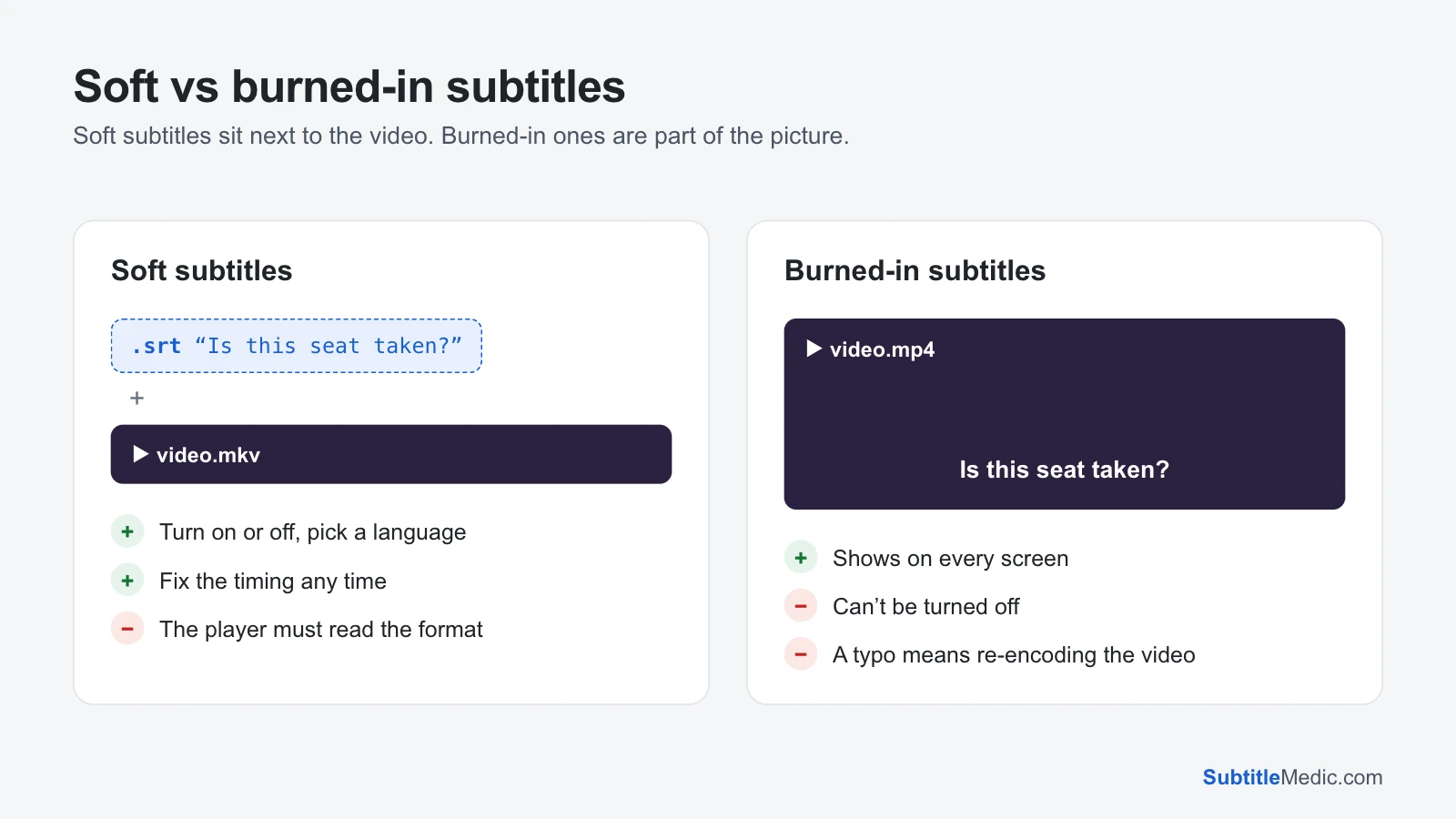
So there are two ways for subtitles to reach the TV: as text in a format the Chromecast reads, or burned into the picture by the app before it is sent. Every fix below is one of the two.
2. Casting from VLC on a computer
VLC 3 can cast to a Chromecast, but its subtitles work only part of the time. VideoLAN’s developers have explained why: VLC shows subtitles only when it has to convert the video for the Chromecast anyway, and burns them in during that conversion. A video the Chromecast can play as it is (most MP4s) is sent untouched, and the subtitles stay on the computer. Support for both cases is planned for VLC 4, not the 3.0 releases.
What you can do:
- Burn the subtitles in before casting, with a video converter such as HandBrake. The result plays with subtitles on any screen, but you can no longer turn them off.
- Cast a browser tab instead (step 3).
- Use a media server that converts subtitles for you (step 4).
3. Cast a browser tab
Casting a tab sends a copy of what the tab shows, subtitles included, so the format no longer matters. Open the video and its subtitle in Subtitle Player, which plays both in your browser without uploading them, start playback, and in Chrome choose ⋮ → Cast… (under Cast, save, and share in recent versions), pick your Chromecast and cast the tab. Make the video full screen so it fills the TV.
The picture is a live copy, so it is a little softer than a direct cast and depends on your Wi-Fi. For a film night that is usually fine; for 4K, a media server is better.
4. Plex and Jellyfin
Media servers handle subtitles for the Chromecast themselves: they send text subtitles in a format it reads, or burn them into the video when they can’t.
- SRT usually works as text. Name the file after the video with a language code (
Movie (2024).en.srt), refresh the library and choose the subtitle in the app before you cast. - ASS / SSA (anime, fansubs) and image subtitles (PGS from Blu-rays) are often burned in. That needs a fast server; on a slow one, playback stutters or the subtitles drop out. Converting the file with ASS to SRT avoids the burn-in. Subtitles inside an .mkv can be saved as a separate .srt with Extract Subtitles from MKV.
If subtitles show in the Plex or Jellyfin app on your phone but vanish when you cast, choose them again after casting starts: the cast player keeps its own subtitle selection.
5. Your own web page or app
If you cast from a site or app you built with the Cast SDK, send the subtitles as a WebVTT text track. Convert an .srt with SRT to VTT. Google’s documentation also requires the subtitle file to be served with CORS headers, so the Chromecast is allowed to fetch it from your server. A missing CORS header is the most common reason a correct .vtt still doesn’t appear.
6. Broken letters
If the text shows é, đ, question marks or boxes instead of accented letters, the subtitle was saved in an old regional encoding, and the app that converted it for the Chromecast guessed wrong. Fix Subtitle Encoding detects the encoding, shows the repaired text and saves the file as UTF-8, which every app reads correctly. Do this before you convert or burn in the subtitles.
7. The subtitles are early or late
When the lines show but don’t match the voices, the file was made for a different release of the film. Casting adds no delay of its own, so fix the file:
- Subtitle Player: play the video with the subtitle in your browser, nudge it until it matches, and download the synced file.
- Change Subtitle Frame Rate: when the first lines match but the gap grows as the film goes on.
How to fix subtitles out of sync explains how to tell the two problems apart.
Quick checklist
- The app you cast from sends subtitles at all (VLC only when it converts the video).
- The subtitle is chosen in the app after casting starts.
- For your own app: WebVTT, served with CORS.
- No luck with the file? Cast a tab from Subtitle Player, or burn the subtitles in.
- The text is saved as UTF-8.
Using a TV box or stick instead? See Fire TV Stick subtitles not showing and Roku subtitles not showing, or the general guide Subtitles not showing on TV.