Subtitles not showing on Android TV or Google TV: how to fix it
Updated October 28, 2026
Sony, TCL, Philips and Hisense TVs, the Nvidia Shield, the Google TV Streamer and the Chromecast with Google TV all run Android TV or Google TV. None of them has one subtitle reader for the whole system: the app that plays the video decides whether your subtitle file is found, which formats it reads and how it draws the text. So the same .srt can work in one app and not show at all in another.
This guide is about your own video files, from a USB drive or a home server. In Netflix, YouTube and other streaming apps the subtitles come with the stream, and you switch them on in that app’s player.
1. Find out which app is playing the video
Opening a file from a USB drive starts different apps on different TVs:
- The TV maker’s own player (Sony’s Video app, Philips Media and similar): reads a short list of formats, usually SRT and a few others.
- VLC for Android, free in the Play Store: reads SRT, VTT, ASS, SSA, SUB and more, and is the easiest app to test with.
- Kodi: reads most text formats, with its own subtitle settings.
- Plex or Jellyfin: the server finds the subtitle and sends it to the TV.
If a subtitle doesn’t show in one app, open the same video in VLC. If VLC shows it, the file is fine and the first app is the problem. If VLC doesn’t either, fix the file with the steps below.
2. Same name, same folder
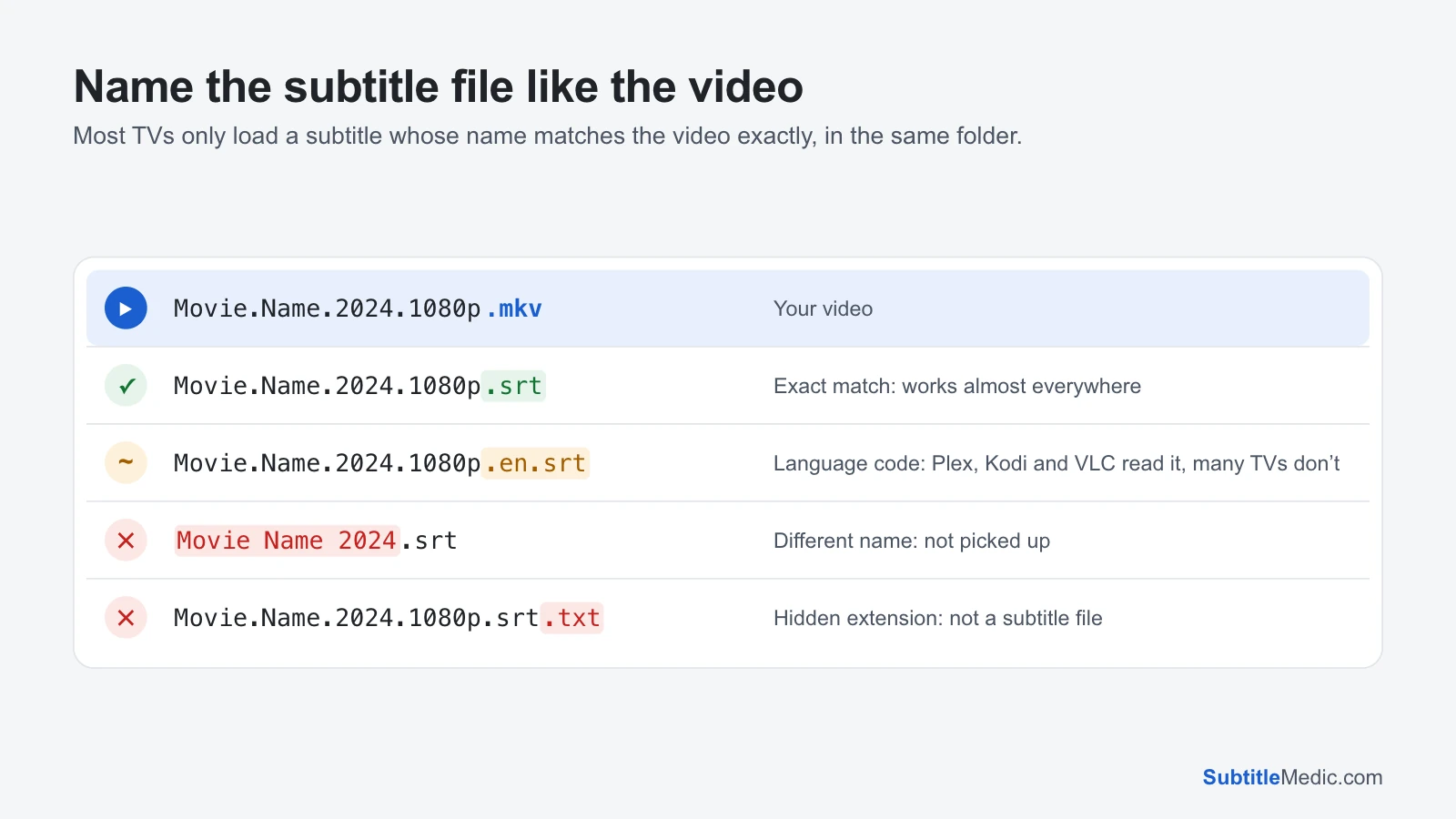
VLC and Kodi load a subtitle by themselves when it sits in the same folder as the video and has the same name, only with .srt at the end:
 Open full size (new tab)
Kodi also reads a language code after the name, such as Movie Name (2006).en.srt, as its documentation shows, and uses it to pick the language you set as preferred. The TV makers’ players are stricter: give them the plain name first.
On Windows, turn on View → Show → File name extensions before renaming, so that Movie.srt doesn’t end up as Movie.srt.txt.
3. Load the subtitle by hand
When a file isn’t picked up by itself, you can still point the app to it:
- VLC: during playback open the subtitle menu (the speech-bubble icon) and choose the option to select a subtitle file, then browse to it.
- Kodi: during playback open the subtitle settings and use Browse for subtitle….
If that works, the file itself is fine and only the name or folder needs fixing for next time.
4. Playing over the network
Automatic loading is less reliable when the video comes from another computer. VLC users report two cases:
- From an SMB (Windows) share, a matching .srt is sometimes not loaded automatically, while the same files on a USB drive work. Load it by hand as in step 3.
- From a DLNA/UPnP media server, VLC can’t look inside the server’s folders for a subtitle at all. Browse the share over SMB instead, or copy the files to a USB drive.
With Plex or Jellyfin, the server matches the subtitle, not the TV. Name the file after the video with a language code (Movie (2024).en.srt), refresh the library, then pick the subtitle in the app’s player.
5. Check the caption setting
Google TV has a system caption switch: from the home screen go to Settings → Accessibility → Captions and turn on Display. On older Android TV models the path is Settings → Device Preferences → Accessibility → Captions.
Google notes that these preferences may not apply in every app. VLC, Kodi and Plex have their own subtitle on/off switch in the player, and that is the one that counts. In Kodi, set Settings → Player → Language → Preferred subtitle language so it turns subtitles on for every film.
6. The app doesn’t read that format
If the file shows in VLC but not in the TV’s own player or in Plex, convert it to SRT, the format every app reads:
- .ass / .ssa (anime, fansubs): ASS to SRT. Plex may also burn ASS subtitles into the picture, which can make playback slow or jerky.
- .sub (MicroDVD text, lines like
{120}{240}Hello): SUB to SRT - .vtt (web subtitles): VTT to SRT
Subtitles inside an .mkv that the app ignores can be saved as a separate .srt with Extract Subtitles from MKV. Image subtitles from Blu-rays (PGS, .sup) and DVDs (VobSub, .idx + .sub) are pictures, not text, so many apps can only burn them in.
7. Broken letters
If the text shows é, đ, question marks or boxes instead of accented letters, the subtitle was saved in an old regional encoding. Kodi and VLC let you pick a character set in their subtitle settings, but that has to be done again in every app. Fix Subtitle Encoding detects the encoding, shows the repaired text and saves the file as UTF-8, which every app reads correctly.
If tags such as <font color="#ffff00"> or {\an8} appear on screen, Remove Formatting from Subtitles strips them out.
8. The subtitles are early or late
VLC and Kodi let you shift the subtitles during playback, but the shift is lost when you close the video. To fix it for good:
- Subtitle Player: play the video with the subtitle in your browser, nudge it until it matches, and download the synced file.
- Change Subtitle Frame Rate: when the first lines match but the gap grows as the film goes on.
How to fix subtitles out of sync explains how to tell the two problems apart.
Quick checklist
- The video plays in an app that reads the format (test with VLC).
- The subtitle has the same name as the video and is in the same folder.
- Subtitles are switched on in the app’s player, not only in the TV settings.
- Over the network, the app can see the subtitle’s folder (SMB or USB, not DLNA).
- The file is SRT, saved as UTF-8.
Streaming from a stick instead? See Fire TV Stick subtitles not showing and Chromecast subtitles not showing, or the general guide Subtitles not showing on TV.