MPC-HC subtitles showing weird characters? Why Windows matters, and the fix
Updated October 29, 2026
MPC-HC (and its sibling MPC-BE) shows a subtitle as Dzieñ dobry instead of Dzień dobry, or as question marks and boxes. The same file may look right on a friend’s computer. The difference is often not MPC-HC at all, but a setting deep in Windows.
Why the same file reads differently on two PCs
A subtitle file is plain text, with no label saying which encoding it uses. Files saved as UTF-8 with a BOM say so in their first bytes, and MPC-HC reads them correctly everywhere. Older files were saved in a regional Windows code page, and for those the reader has to know which one.
For a file without a BOM, MPC-HC’s subtitle renderer often falls back to the code page Windows uses for older programs, the one set as Language for non-Unicode programs. On a computer set to English, that is Windows-1252. A Polish file in Windows-1250 then shows the wrong letters, while on a Polish computer the same file looks perfect.
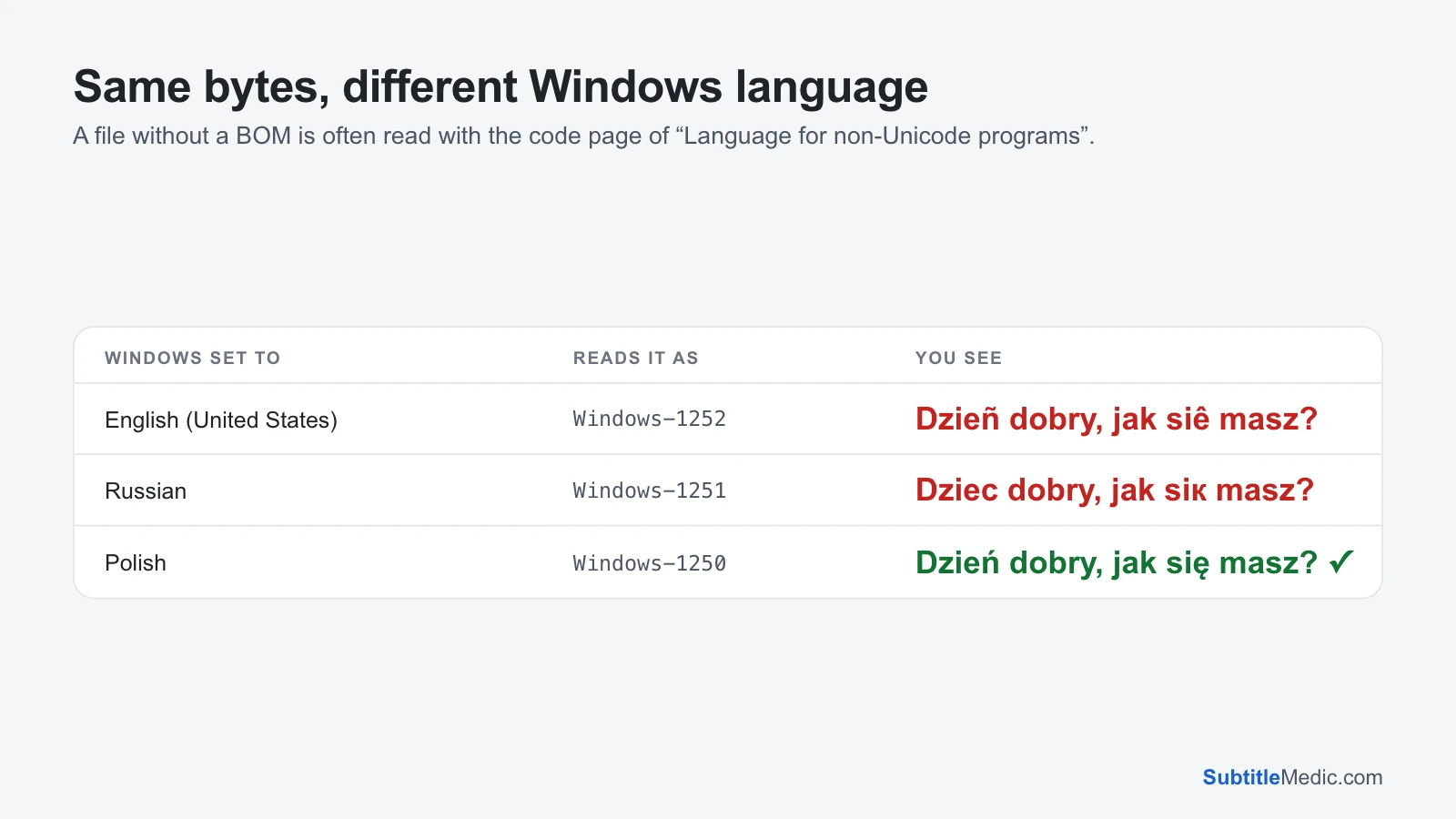 Open full size (new tab)
What the symbols mean
- Letters swapped for similar ones (
ñforń,êforę) or letters from another alphabet: the wrong regional code page. é,è,Ä‘: a UTF-8 file without a BOM read as Windows-1252, or a file converted twice.?or�: letters that don’t exist in the code page used to read the file.- Empty boxes
□with the rest correct: the subtitle font has no shapes for those letters.
Fix 1: set the character set in MPC-HC
MPC-HC’s subtitle style has a character set, which its renderer uses for text that isn’t Unicode.
- Open View → Options and go to Subtitles → Default Style.
- In the font section, set the character set to match your subtitles, for example Eastern European for Polish or Czech, Cyrillic for Russian, or Vietnamese.
- Apply, then reopen the video.
Users report that MPC-HC sometimes doesn’t keep changed subtitle settings. If yours keep resetting, use the fix below, which needs no setting at all.
Changing Language for non-Unicode programs in Windows (Control Panel → Region → Administrative) also changes how the file is read. It needs a restart and affects every older program on the computer, so it is a heavy tool for a subtitle problem.
Fix 2: save the file as UTF-8 with a BOM
- Open Fix Subtitle Encoding and drop the subtitle in. It detects the encoding the file was written in, whatever your Windows is set to, and shows the decoded text with accented letters highlighted. If two readings are close, it shows both; pick the one that reads right.
- If the file has
é-style damage written into it, keep Repair damaged letters on. - Tick Add a BOM for older TVs and players. With the BOM, MPC-HC knows the file is UTF-8 and stops relying on the Windows setting.
- Download the file and replace the old one next to the video, keeping the name, such as
Movie.pl.srt.
The file is read in your browser and never uploaded. It now plays the same on every computer, whatever language Windows uses.
Empty boxes: the font
If the letters are right in the tool’s preview but boxes appear in MPC-HC, choose another font under Subtitles → Default Style: Arial, Segoe UI or a Noto font covers most scripts. Styled ASS subtitles name their own fonts and can override yours; ASS to SRT turns them into plain text.
Other things to check
Another filter draws the subtitles. If a codec pack installed its own subtitle filter, it may render the text instead of MPC-HC’s built-in renderer, and ignore the settings above. Test with that filter disabled.
Codes appear on screen, such as {\an8} or <font color="#ffffff">. Remove Formatting from Subtitles removes them and can keep italics.
The subtitle is inside the MKV. If an embedded track shows wrong letters, the problem was made when the file was created. Save it as a file with Extract Subtitles from MKV, fix it as above and load it as an external file.
For the same problem in other players, see PotPlayer subtitles showing weird characters and VLC subtitles showing weird characters.