How to edit an SRT file without breaking it
Updated October 24, 2026
An .srt file is plain text, so any text editor can open it. That is the good news. The bad news is that the format is strict: one missing blank line or a wrong character in a timing line, and a player may skip every subtitle after it, or show nothing at all.
This guide shows how to edit an SRT file safely on Windows and on a Mac, the five mistakes that break one, and a quicker way to edit it in your browser, where those mistakes can’t happen.
What you are editing
Each subtitle in an SRT file is a block of four parts:
12
00:01:02,500 --> 00:01:05,000
Is this seat taken?
- A number, counting up from 1.
- A timing line: start, an arrow made of two dashes and
>, then end. Hours, minutes, seconds, a comma, then milliseconds. - The text, one or two lines.
- A blank line, which ends the block.
You can change the words and the two times freely. Everything else has to stay exactly in that shape. For a full tour of the format, see What is an SRT file?
Edit an SRT file on Windows with Notepad
- Right-click the .srt file and choose Open with → Notepad. If Notepad isn’t listed, pick Choose another app and find it there.
- Use Ctrl+F to find the line you want, then change the text or the time.
- Save with Ctrl+S. The file keeps its name and encoding.
If you use Save As instead, set Save as type to All files and Encoding to UTF-8. Otherwise Notepad may save it as movie.srt.txt, and since Windows hides known extensions, it will still look like movie.srt while no player recognises it.
Edit an SRT file on a Mac with TextEdit
- Right-click the file and choose Open With → TextEdit.
- If you see formatting buttons at the top of the window, choose Format → Make Plain Text. An SRT file must stay plain text.
- Turn off smart dashes and quotes before you type: Edit → Substitutions, then untick Smart Dashes and Smart Quotes. With Smart Dashes on, typing
-->can turn it into—>, and the timing line no longer works. - Save with ⌘+S.
Any code editor, such as VS Code or Sublime Text, also works on both systems and doesn’t change what you type.
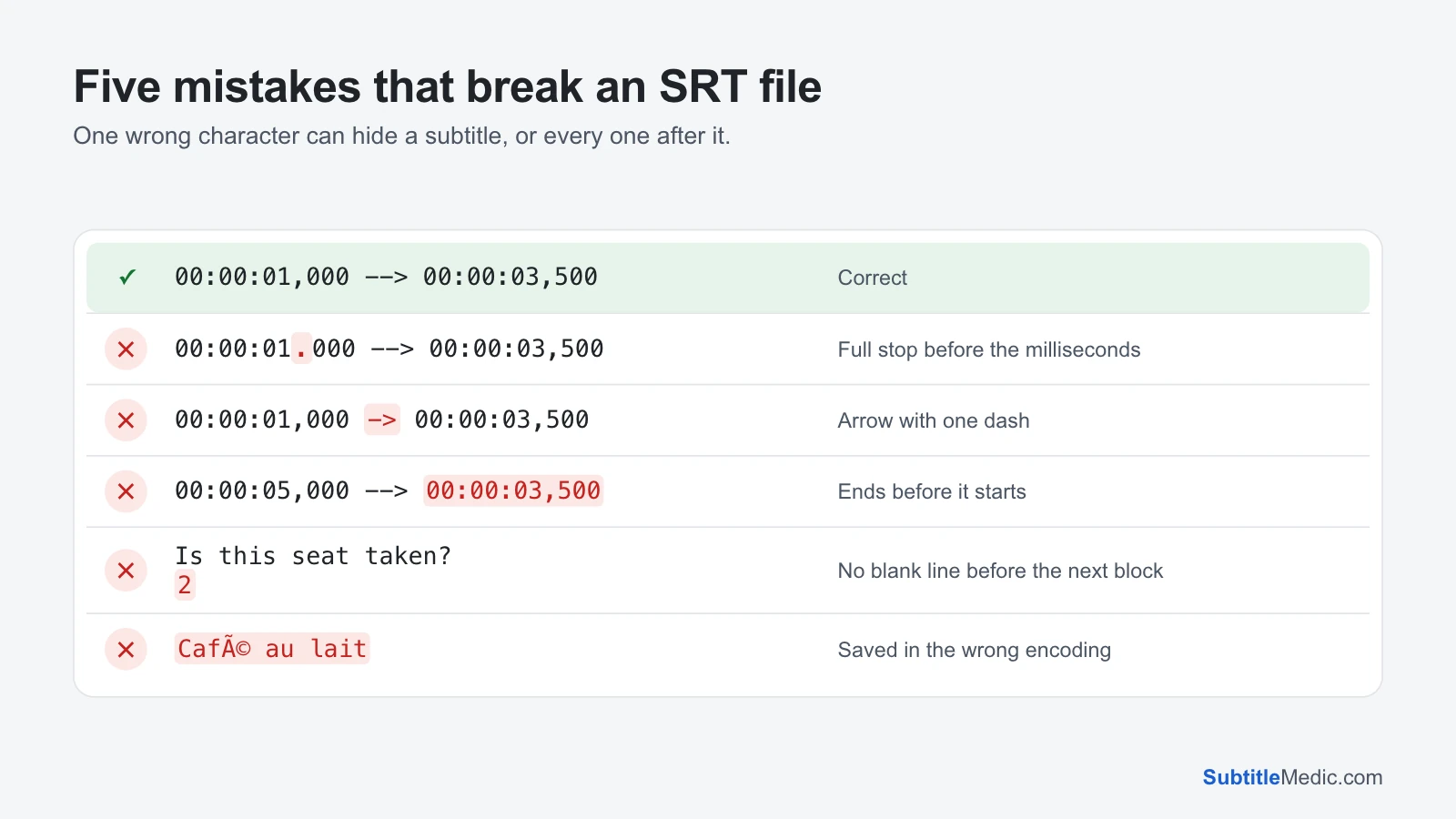
Five mistakes that break an SRT file
 Open full size (new tab)
1. A full stop instead of a comma. 00:00:01.000 is how WebVTT writes time, not SRT. VLC forgives it, but many TVs and older players don’t, and skip the line.
2. A broken arrow. The separator is two dashes and a >, with a space on each side: -->. One dash, a long dash or a missing space and the block isn’t read.
3. An end before the start. Typing 00:00:05,000 --> 00:00:03,500 gives the line no time on screen, so it never shows. It usually happens when you edit the start and forget the end.
4. A missing blank line. Without it, the player reads the next number and timing line as more text of the line before. You see “2” and a row of numbers on screen, or the next subtitle never appears.
5. The wrong encoding. If you save the file in another encoding than the player expects, letters such as é, ñ or Vietnamese marks turn into é or ?. Save as UTF-8. If the file is already garbled, Fix Subtitle Encoding repairs it.
The quicker way: edit it in your browser
A text editor shows you the whole file and trusts you not to break it. The Subtitle Editor shows only what you are meant to change: each line’s start, end and text, in a list.
- Change words and times in their own fields. A time you can’t read is refused instead of saved.
- Add or delete a line with one button. The numbers, arrows and blank lines are written for you when you download.
- See the problems. Lines that overlap the next one, never show, are empty or go by too fast to read are flagged, and one tick lists only those.
- Check on the video. Open the film next to the file, jump to any line, and set a start or end from the moment you paused on.
- Undo any step with Ctrl+Z or ⌘+Z.
It works the same on Windows, a Mac, a Chromebook or a phone, and it also opens .vtt, .ass, .sbv and .sub files, saving each in the format it came in. The file is read in your browser and never uploaded.
If you are deciding between a full subtitle program and a quick fix, Subtitle Edit on Mac compares the options.
When a different tool is faster
Editing line by line is right for a few changes. For changes to the whole file, use a tool made for it:
- Every line is early or late by the same amount. Shift Subtitle Timing moves them all at once. Not sure which kind of sync problem you have? Read how to fix subtitles out of sync.
- Lots of [music] tags, speaker names or ads. Subtitle Cleaner removes them all in one pass.
- Lines flagged as too fast to read. Subtitle reading speed explains the limit and three ways to fix a line.
After you edit
Keep the edited file next to the video with the same name, such as movie.mkv and movie.srt, and remove the old copy so the player doesn’t load it instead. Then play a minute around each line you changed. If a line still doesn’t appear, open the file again and look at the line just before it: a missing blank line or a broken arrow there hides the next subtitle, not its own.